Discover expert strategies and easy steps to effectively hide the chat interface on Roblox while playing on your PlayStation 5. This comprehensive guide is tailored for busy US gamers, balancing work, family, and a passion for gaming. Whether you seek a cleaner screen, enhanced focus, or a more private gaming session, we provide clear, actionable solutions. Learn how to adjust in-game settings, leverage console features, and optimize your Roblox experience on PS5, ensuring uninterrupted relaxation and fun. Stay updated with current trends in console gaming performance and user interface customization, making your playtime more enjoyable and less cluttered. This article addresses common pain points for adult gamers who value an efficient and personalized setup, ensuring you get the most out of your limited gaming hours without unnecessary distractions. Dive in to reclaim your screen and enhance your Roblox adventures.
How do I quickly hide the chat window in Roblox on my PS5?
The most direct method to quickly hide the chat window in Roblox on PS5 typically involves pressing the 'Options' button on your DualSense controller to open the main menu, then navigating to the 'Settings' or 'Privacy' section. Look for a 'Chat' or 'Interface' option where you might find a toggle to disable or minimize the chat display. If a direct toggle isn't available, adjusting chat privacy settings to 'No one' can effectively clear your screen of incoming messages, providing a quick visual declutter for focused gameplay.
Can I permanently disable Roblox chat on my PlayStation 5?
While you can't permanently disable the chat functionality for Roblox across all experiences with a single, irreversible setting on PS5, you can set your privacy options to 'No one' for 'Who can chat with me' within Roblox's settings. This significantly reduces incoming chat, making your screen much clearer. For a cleaner visual experience during your current session, some in-game methods or console-level display adjustments may temporarily hide the visual chat box, but these often need reapplication per session.
What are the privacy settings I should check to control Roblox chat on PS5?
To comprehensively control Roblox chat privacy on your PS5, access the in-game settings via the 'Options' button on your controller. Navigate directly to the 'Privacy' tab. Here, crucial settings include 'Who can chat with me?', 'Who can message me?', and 'Who can join me in experiences?'. Setting these to 'No one' or 'Friends' provides the most robust control over who can interact with you and, consequently, helps in reducing unwanted chat on your screen, which is paramount for a focused gaming experience.
Does hiding the chat improve game performance on Roblox PS5?
Hiding the chat itself is unlikely to significantly improve raw game performance such as frame rates or load times on Roblox PS5, as the chat system's background processes are relatively minimal. However, it profoundly enhances your *personal performance* by reducing visual distractions. This allows for better concentration, quicker reactions, and a more immersive experience, which many adult gamers consider a significant form of performance optimization for themselves and their enjoyment, especially during competitive or complex game modes.
Is there a keyboard shortcut to hide chat in Roblox on PS5?
Unlike PC gaming, where specific keybinds like '/' might toggle chat visibility, Roblox on PS5 generally does not feature a dedicated keyboard shortcut to instantly hide or show the chat window. Most interface controls are designed for the DualSense controller, relying on menu navigation. While some specific Roblox experiences might implement their own custom UI toggles within their unique game settings, a universal, direct shortcut for hiding chat on PS5 is not a standard feature, requiring menu interaction instead.
How do I prevent unwanted messages from appearing while playing Roblox on PS5?
To effectively prevent unwanted messages from appearing on your screen while playing Roblox on PS5, the primary method is to adjust your privacy settings within Roblox. Access these via the 'Options' button on your controller, then navigate to the 'Privacy' section. Here, change
As US gamers, many of us juggle demanding jobs, family commitments, and a passion for diving into virtual worlds. After a long day, firing up the PlayStation 5 for some Roblox fun isn't just about entertainment; it's about relaxation, a quick escape, or connecting with friends in a low-stress environment. However, sometimes the on-screen chat can become a significant distraction, cluttering your crisp 4K display or pulling your focus away from the adventure. You're not alone if you've ever wished for a way to simply hide that chat box, especially when you're trying to concentrate on a tricky obby, build an intricate world, or just soak in the game's atmosphere. This desire for a cleaner, more focused gaming experience resonates with many adult gamers who value every minute of their playtime.
With 87% of US gamers playing regularly and often dedicating 10+ hours a week, optimizing that experience on platforms like Roblox, which sees massive cross-play engagement across mobile and consoles, is absolutely key. Whether you're looking to boost your immersion, safeguard privacy for your family, or simply enjoy a less cluttered interface on your PS5, understanding **how to hide chat on Roblox PS5** can significantly enhance your gameplay. This comprehensive guide is designed to provide you with practical, straightforward steps to manage and hide the chat feature, ensuring your Roblox sessions are exactly what you need them to be: enjoyable, focused, and free from unwanted distractions. We'll explore in-game settings, console features, and helpful tips that respect your time and gaming preferences, allowing you to tailor your Roblox environment for maximum enjoyment this month and beyond.
Why Would Gamers Want to Hide Roblox Chat on PS5?
Many adult gamers, often juggling demanding schedules, find on-screen chat distracting, especially when their primary goal is to relax or focus intently on gameplay. Hiding the chat can significantly improve immersion, allowing you to fully appreciate the game's visuals, audio, and narrative without constant text overlays. This is particularly true for players engrossed in story-rich experiences or those trying to master complex mechanics. For individuals balancing gaming with family life, hiding chat offers a crucial layer of privacy, preventing potentially irrelevant or unmoderated conversations from being visible to younger, curious eyes nearby. Moreover, a cleaner interface means less visual clutter, which can be critical for fast-paced competitive games where split-second decisions matter, or simply for players who prefer a minimalist screen during their limited, precious gaming sessions to reduce cognitive load and enhance mental clarity.
Is Hiding Roblox Chat on PS5 Permanent or Temporary?
The methods available for hiding Roblox chat on your PS5 are generally temporary and game-session specific. This means that if you close Roblox and restart it, or even sometimes switch between different experiences within Roblox, you might need to reapply the chat hiding settings. This design ensures that you always have the flexibility to bring the chat back when you need it, for example, when coordinating with friends in a specific game mode or engaging in the social aspects that many Roblox experiences offer. It provides a quick toggle for your preferred experience rather than a system-wide, irreversible change. Understanding this allows you to quickly adjust your setup for optimal focus when you need it, and effortlessly revert when social interaction is desired.
How Do You Access Roblox Settings on PS5 to Adjust Chat Visibility?
Accessing Roblox settings on your PlayStation 5 is a straightforward process, designed for ease of use across console players. While actively within any Roblox experience, simply press the 'Options' button located on your DualSense controller. This action typically brings up the main Roblox menu, which acts as a central hub for various in-game functionalities. From this menu, navigate to the 'Settings' or 'Options' tab, usually represented by a gear icon. Once inside, you'll need to look for sections related to 'Privacy', 'Chat', or 'Interface'. These dedicated menus house various toggles and options that control how chat messages are displayed, filtered, and who can communicate with you. It’s your go-to place for customizing your Roblox environment to better suit your playing style and privacy needs.
What In-Game Settings Control Roblox Chat on PS5?
Within Roblox experiences on PS5, chat controls are primarily found under the 'Settings' or a specific 'Privacy' menu that you access via the 'Options' button. Key settings to actively look for include: 'Chat Filter Level,' which allows you to adjust the strictness of message filtering; 'Who can chat with me,' where you can specify 'No one,' 'Friends,' or 'Everyone'; and sometimes, although less common universally, an explicit 'Disable Chat Display' or 'Hide Chat' toggle within the UI section. While a direct 'hide chat' button isn't a guaranteed feature across all Roblox experiences, effectively adjusting 'Who can chat with me' to 'No one' or 'Friends' significantly reduces the amount of incoming messages, and when combined with other strategies, can greatly help in cleaning up your screen. Some individual experiences might also offer their own UI scaling or transparency options.
Can PS5 Parental Controls Help Manage Roblox Chat?
Absolutely, the PlayStation 5's robust parental control features can play a significant and effective role in managing the chat experience on Roblox, especially for younger players. Parents and guardians can set communication restrictions for child accounts directly through the PS5 system settings. This includes granular control over aspects like limiting text chat with other players, preventing the sending or receiving of voice messages, or even disabling all forms of communication entirely. While these controls are primarily designed for younger users, adult gamers sharing a console with children might find these system-wide settings invaluable for consistent and overarching management of online interactions. To access them, navigate to 'Settings' > 'Family and Parental Controls' > 'Restriction for PlayStation 5' > 'Communication and User-Generated Content,' providing a powerful tool for a safer gaming environment.
Are There Any Quick PS5 System-Level Tricks to Hide Roblox Chat?
While the PS5 doesn't offer a specific, universal 'hide chat box for a particular game' button, you can leverage some system-level features to minimize visual distractions, which might indirectly help with Roblox chat. One common trick involves adjusting your display's safe zone or overscan settings within the PS5's display options. By slightly nudging the display area, you might be able to push the chat box just off-screen, depending on the Roblox experience's UI and your TV or monitor's capabilities. This isn't a perfect solution and could potentially affect other UI elements, but it's a creative workaround for those wanting to experiment with console-level display manipulation. Additionally, utilizing the PS5's built-in screenshot or video clip features momentarily clears the screen, though this is not practical for continuous gameplay.
How Does Hiding Chat Affect Social Interactions on Roblox PS5?
Hiding the chat purely for visual decluttering doesn't automatically prevent you from receiving messages; it primarily stops them from displaying on your screen. You might still receive notifications or see messages pop up briefly, depending on the specific Roblox experience or your overall Roblox settings. To truly limit social interactions, you would need to proactively adjust your in-game privacy settings to 'Friends Only' or 'No one' for communication. Many adult gamers skillfully balance this by using external voice chat applications like Discord on their phones or through their PS5's party chat feature. This allows them to communicate with trusted friends or a dedicated community while keeping the in-game screen clean and focused on the action, reflecting a growing trend in social gaming where off-platform communication is preferred for clarity and privacy.
What are the Benefits of a Clean Roblox Interface on PS5 for Adult Gamers?
For adult gamers, a clean Roblox interface on PS5 translates directly to a more focused, immersive, and ultimately more enjoyable experience. With less visual clutter from chat boxes, you can fully immerse yourself in the game's environment, storyline, or creative challenges, which is invaluable during limited gaming windows. It significantly reduces cognitive load, allowing for quicker reactions, better strategic thinking, and improved performance, whether you're building intricate structures, navigating complex obbies, or competing in skill-based games. Furthermore, a streamlined screen can reduce eye strain and mental fatigue, making longer play sessions more comfortable and sustainable. This level of customization aligns perfectly with the trend of optimizing personal gaming spaces, providing a sense of control and tailored relaxation, ensuring that your gaming time is truly your own and optimized for maximum pleasure, a key consideration for the average US gamer today.
Are There Specific Roblox Experiences Where Hiding Chat is More Beneficial?
Yes, hiding chat can be particularly beneficial across a wide range of Roblox experiences. For instance, in deeply immersive, story-driven adventure games or complex role-playing experiences, a clean screen helps maintain suspension of disbelief and narrative flow, preventing disruptive chat messages from pulling you out of character or the game world. In competitive or fast-paced genres like fighting simulators, racing games, or FPS experiences, minimizing distractions is absolutely crucial for optimal performance and reaction times. Builders and creators often prefer a clear, unobstructed view of their projects to ensure precision and focus on their designs, free from any visual overlays. Even in more casual, cozy games and social hangouts, hiding chat can be advantageous for those who prefer to simply observe, use voice chat instead, or seek a more peaceful visual environment, reflecting the diverse ways gamers engage with social platforms.
How Can I Ensure My Roblox Privacy Settings are Optimal on PS5?
To ensure your Roblox privacy settings are optimal on your PS5, start by accessing the Roblox settings menu from any experience by pressing the 'Options' button on your DualSense controller. Navigate directly to the 'Privacy' section, which is the cornerstone of your online safety and comfort. Here, you'll find crucial options such as 'Who can chat with me?', 'Who can message me?', and 'Who can join me in experiences?'. Set these according to your personal comfort level – selecting 'No one' offers maximum privacy, while 'Friends' allows for controlled interaction with trusted individuals. It's good practice to regularly review these settings, especially after major Roblox updates, to ensure they consistently align with your preferences and evolving gaming habits. Robust privacy settings are not just about hiding chat; they contribute to a safer, more controlled, and ultimately more enjoyable gaming environment, a top priority for savvy adult gamers this month.
Does Roblox chat moderation change when I hide the chat on PS5?
Hiding the chat on your PS5, whether through in-game settings or system-level tricks, does not alter Roblox's fundamental chat moderation policies or processes. Roblox employs robust moderation systems, including filters and human moderators, to enforce its community standards regardless of whether the chat is visible on your screen. So, even if you don't see the chat, any messages sent or received are still subject to Roblox's rules. This means inappropriate content will still be filtered or acted upon, maintaining a safer environment for all players, which is a significant factor for parents and adult gamers concerned about online interactions for themselves or their families.
What if a specific Roblox experience doesn't offer a chat hide option?
If a particular Roblox experience on your PS5 doesn't offer an explicit 'hide chat' option within its specific settings, you can still fall back on general Roblox privacy settings. By setting 'Who can chat with me?' to 'No one' in your main Roblox privacy menu, you significantly reduce the amount of chat you'll receive, effectively cleaning up your screen even without a direct hide button. Additionally, consider using the PS5's display area adjustments as a last resort to nudge the chat box slightly off-screen if it's persistent. For active communication, relying on external platforms like Discord for friends allows you to maintain social connections while keeping your game screen clean.
Ultimately, taking control of your Roblox chat experience on the PlayStation 5 is about personalizing your gameplay to fit your lifestyle and preferences. Whether you're seeking a moment of peace, intense focus, or just a cleaner screen, the tools are available within Roblox and your PS5 system. By applying these tips, you can transform your Roblox sessions into truly tailored escapes, free from unwanted distractions. As adult gamers, we value efficiency and enjoyment, and a clutter-free interface is a significant step towards achieving that. Remember, your gaming time is precious, so make it count, allowing you to maximize fun and relaxation in your virtual worlds.
What's your biggest gaming challenge when balancing life and play? Comment below and share your tips for an optimized Roblox experience!
FAQ Section
How do I make the chat box smaller on Roblox PS5?
While there isn't a universal
Quickly hide Roblox chat on PS5 for a cleaner screen. Enhance focus and privacy during gameplay. Adjust in-game and console settings easily. Optimize your Roblox PS5 experience. Practical steps for adult gamers balancing life. Improve immersion and reduce distractions.
35
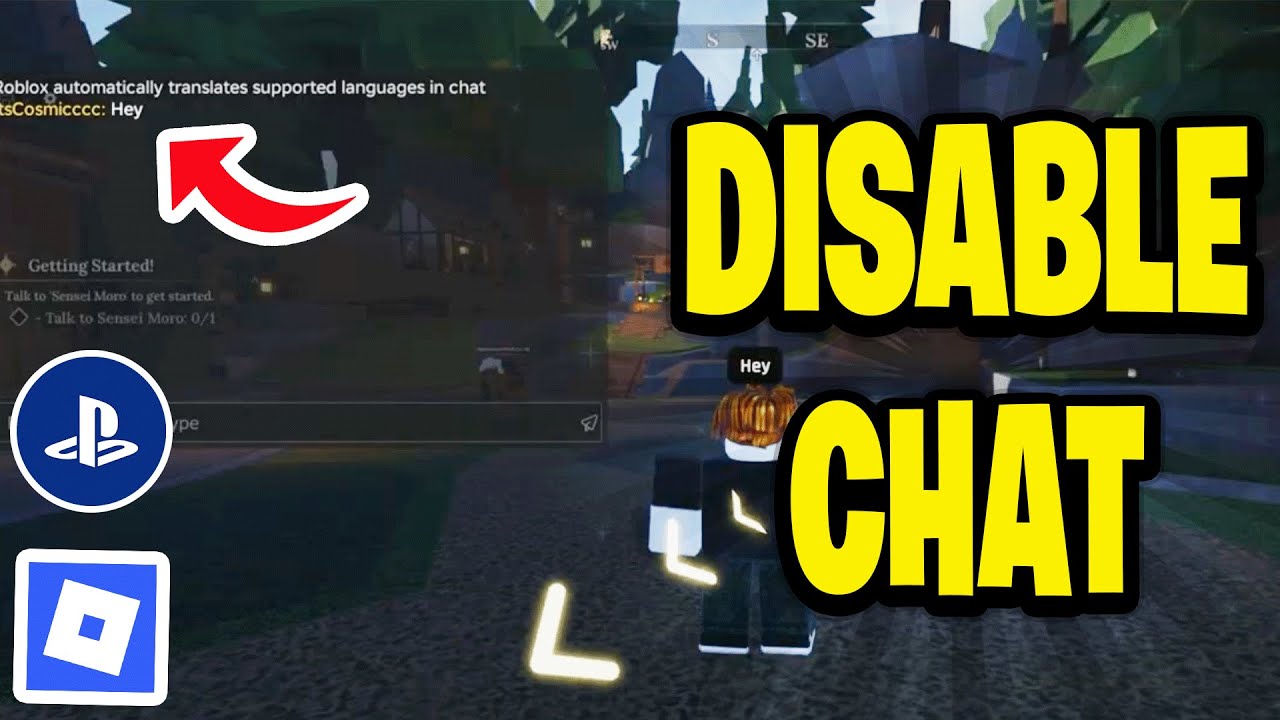


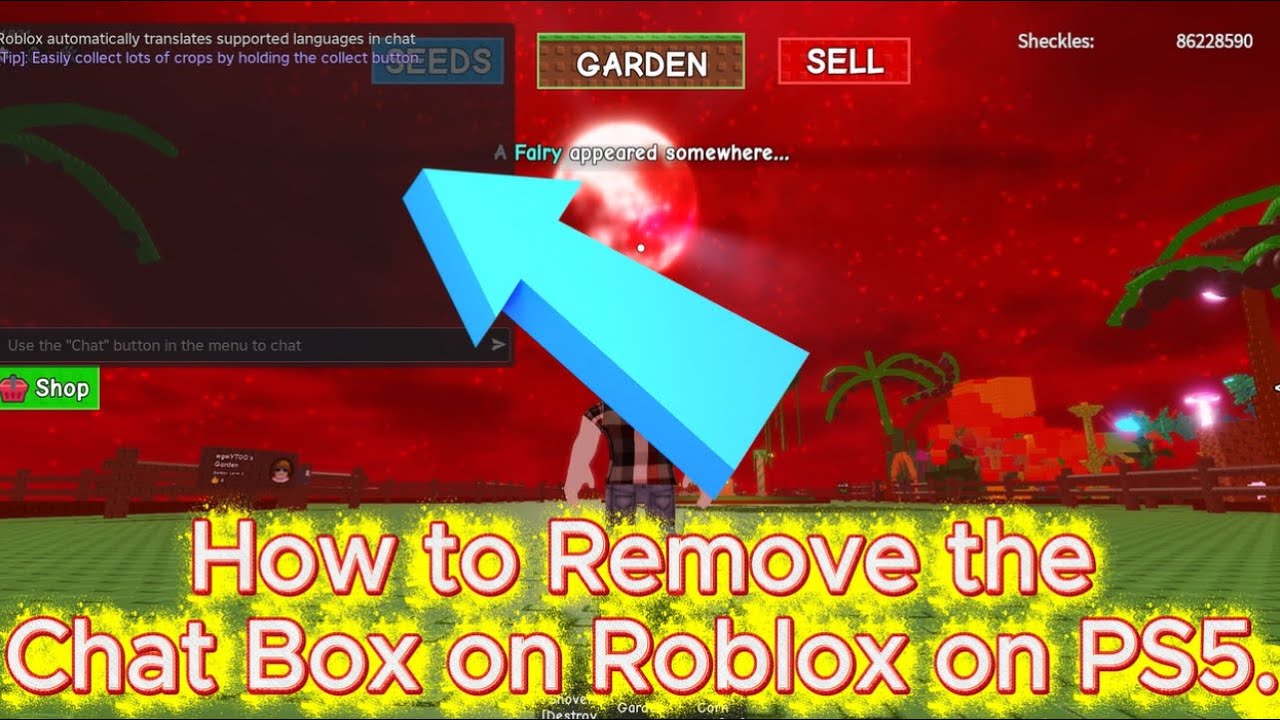
Roblox How To Hide Show Text Chat On PS4 PS5 Tutorial Easy Guide . How To Disable Chat In Roblox PS5 YouTube . How To Turn Off Text Chat On Roblox PS5 YouTube . How To Hide Roblox Chat On Ps5 Xbox YouTube . Roblox How To Remove Hide And Show The Chat Box On Playstation 4



How To CHAT On Roblox PS5 PS4 Full Tutorial YouTube . QUICK TUT How To Hide Chat In PS5 Roblox YouTube . How To Chat On Roblox PS5 2025 UPDATED YouTube . Roblox PS4 PS5 How To Turn On Off Automatic Chat Translation Change . How To Chat In Roblox PS5 2026 YouTube


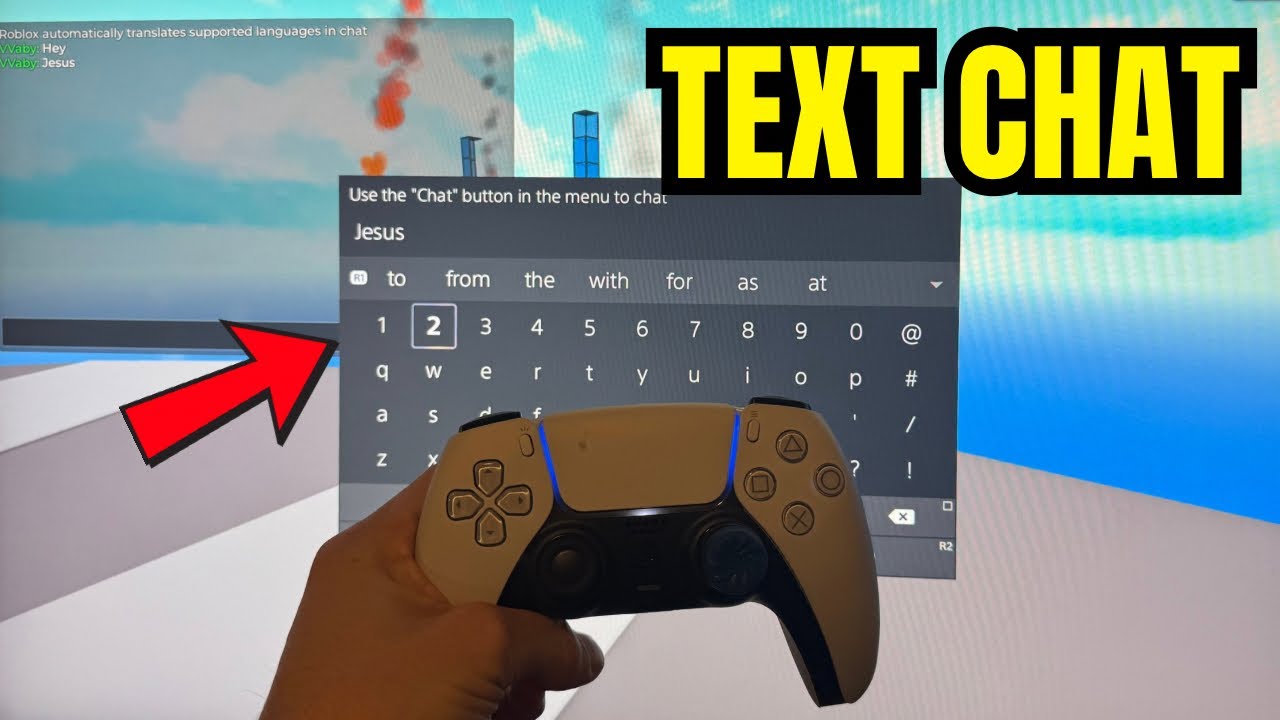
Roblox Chat Box Removal Quick PS5 PS4 Tutorial Guide Imagine Explainers Thumbnail . How To Fix Voice Chat On Roblox PS5 YouTube Hqdefault . How To Get Rid Of Chat On PS5 Roblox 2025 Easy Guide YouTube . ROBLOX How To Chat PS5 PS4 PC YouTube . Roblox How To Text Chat On PS4 PS5 Tutorial Easy Guide 2025 YouTube




How To CHAT On PS4 PS5 Roblox WORKING YouTube . How To TEXT Chat On Roblox PS5 PS4 YouTube . Roblox PS5 Chat Your Friendly Guide . How To Enable Voice Chat On Roblox PS5 PS4 YouTube . Roblox PS5 Chat Your Friendly Guide


How To Chat On Roblox PS5 PS4 PC YouTube . How To Hide Chat In Roblox 2026 YouTube . Roblox PS5 Chat Your Friendly Guide . How To ENABLE Voice Chat Setting On ROBLOX On PS5 YouTube . Roblox PS5 Chat Your Friendly Guide


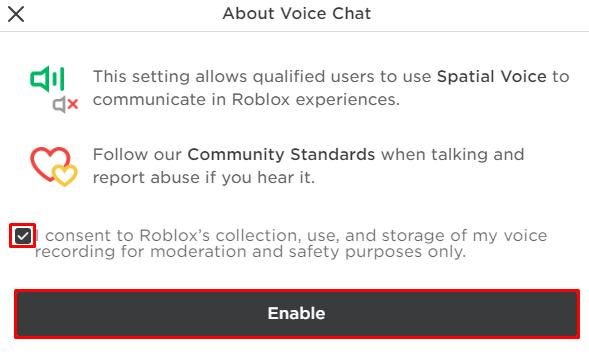
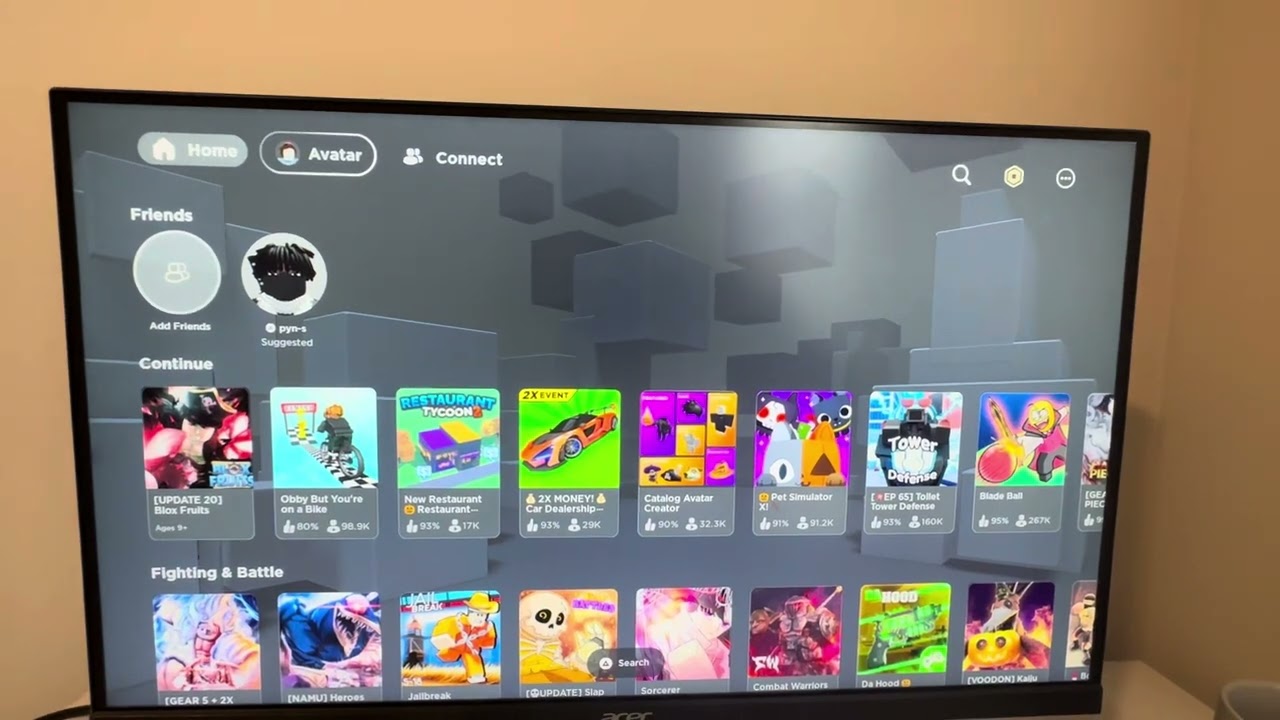
How To ENABLE Voice Chat In Roblox On PS5 In 2025 YouTube . Roblox Chat Box Removal Quick PS5 PS4 Tutorial Guide Imagine Explainers Thumbnail . How To ENABLE Voice Chat Setting On ROBLOX On PS5 YouTube . Roblox PS5 Chat Your Friendly Guide Image 14957c6e8b . How To Chat On Roblox Using PS5 2026 Guide YouTube


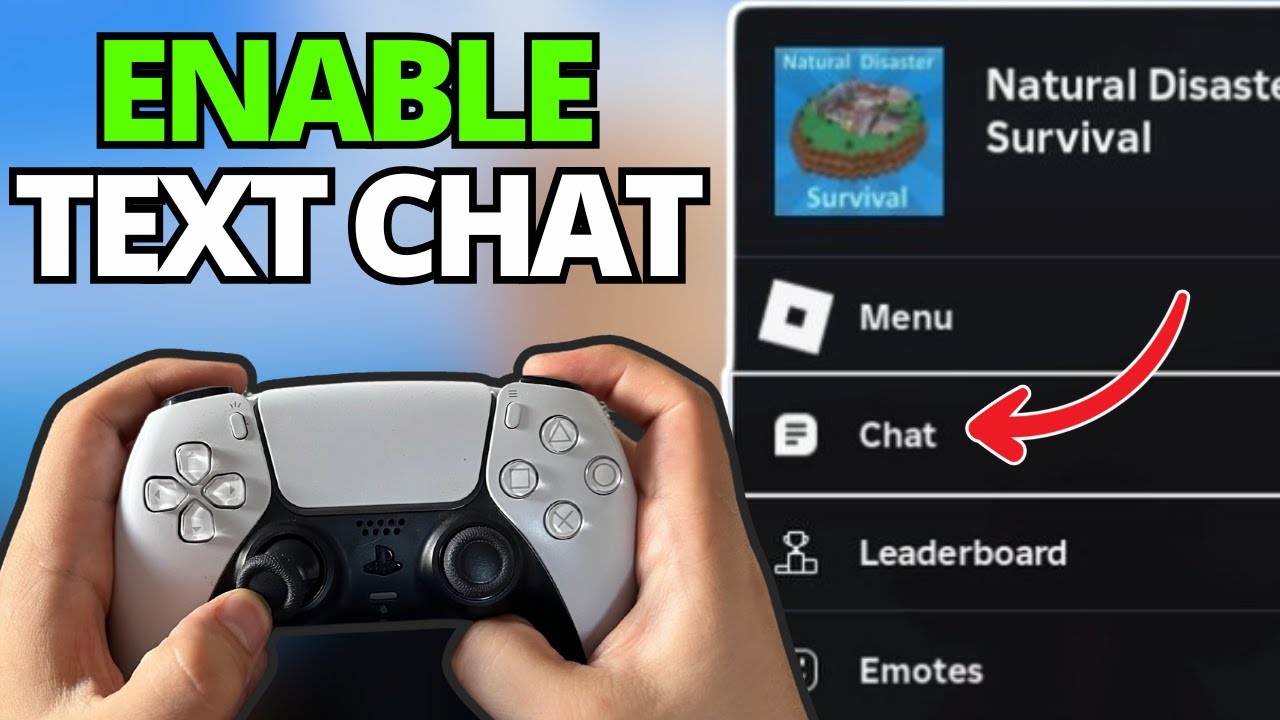
Roblox Chat Box Removal Quick PS5 PS4 Tutorial Guide Imagine Explainers Thumbnail . How To Fix Voice Chat On Roblox PS5 YouTube Hqdefault . How To Enable Text Chat On Roblox PS4 PS5 Updated 2025 YouTube . How To Use Voice Chat In Roblox On Ps5 Tutorial YouTube . How To Use Voice Chat In Roblox PS5 2025 YouTube