Discover why Roblox might not be opening on your device and get straight to the solutions. For the average US gamer, often balancing work and family, precious gaming time is valuable. When Roblox, a platform favored by millions for its diverse social experiences and skill-building games, fails to launch, it can be incredibly frustrating. This comprehensive guide addresses the top reasons why Roblox might not be opening, from server outages and network issues to corrupted game files and outdated drivers. We understand that gamers value quick, reliable fixes to get back to their virtual worlds, whether for relaxation, social interaction with friends, or engaging in creative challenges. Stay current with 2026 best practices and troubleshooting steps tailored for busy adults who need effective solutions without the hype. Learn how to diagnose and resolve common Roblox launch problems efficiently, ensuring you maximize your playtime and minimize technical headaches.
Why isn't Roblox opening on my PC after the latest update?
It's a common headache when Roblox refuses to launch right after an update. Often, the update files might be corrupted, or they could be conflicting with your existing system files or browser cache. Busy adult gamers know the frustration of losing precious time to technical glitches. The first step is always to restart your computer to clear any temporary system anomalies. If that doesn't work, clear your browser's cache and cookies, as Roblox relies heavily on browser components for initial launch. After that, check your antivirus or firewall; sometimes, a new update can trigger a false positive, causing your security software to block Roblox. Temporarily disabling it to test, then adding an exception if it fixes the issue, is a smart move.
How do I fix Roblox not opening on my Windows 10/11 device?
Windows operating systems, while powerful, can sometimes throw a wrench in game launches. If Roblox isn't opening on your Windows 10 or 11 device, start by ensuring your operating system is fully up to date. Microsoft regularly releases patches that can resolve compatibility issues. Next, run Roblox as an administrator by right-clicking the shortcut and selecting 'Run as administrator' – this grants the game necessary permissions. Check your graphics drivers; outdated drivers are a frequent culprit, even for seemingly simple games. Use your GPU manufacturer's software (NVIDIA GeForce Experience, AMD Radeon Software) to update to the latest versions. Lastly, try clearing the Roblox temporary files from your AppData folder; corrupted temp files can prevent launch.
What are the common reasons why Roblox won't open and how do I fix them?
The reasons Roblox won't open are usually a mix of server-side, client-side, or system-related issues. Common culprits include Roblox server outages (check Downdetector), an unstable internet connection, corrupted game files, outdated graphics drivers, or interference from antivirus/firewall software. To fix these, first verify server status. Then, restart your router and PC for network and system refresh. If problems persist, clear Roblox's cache and temporary files. Update your graphics drivers from official sources. If all else fails, a clean reinstallation of Roblox usually resolves corrupted game file issues. Addressing these systematically often gets you back into the game quickly.
My Roblox client launches but then immediately closes. What's wrong?
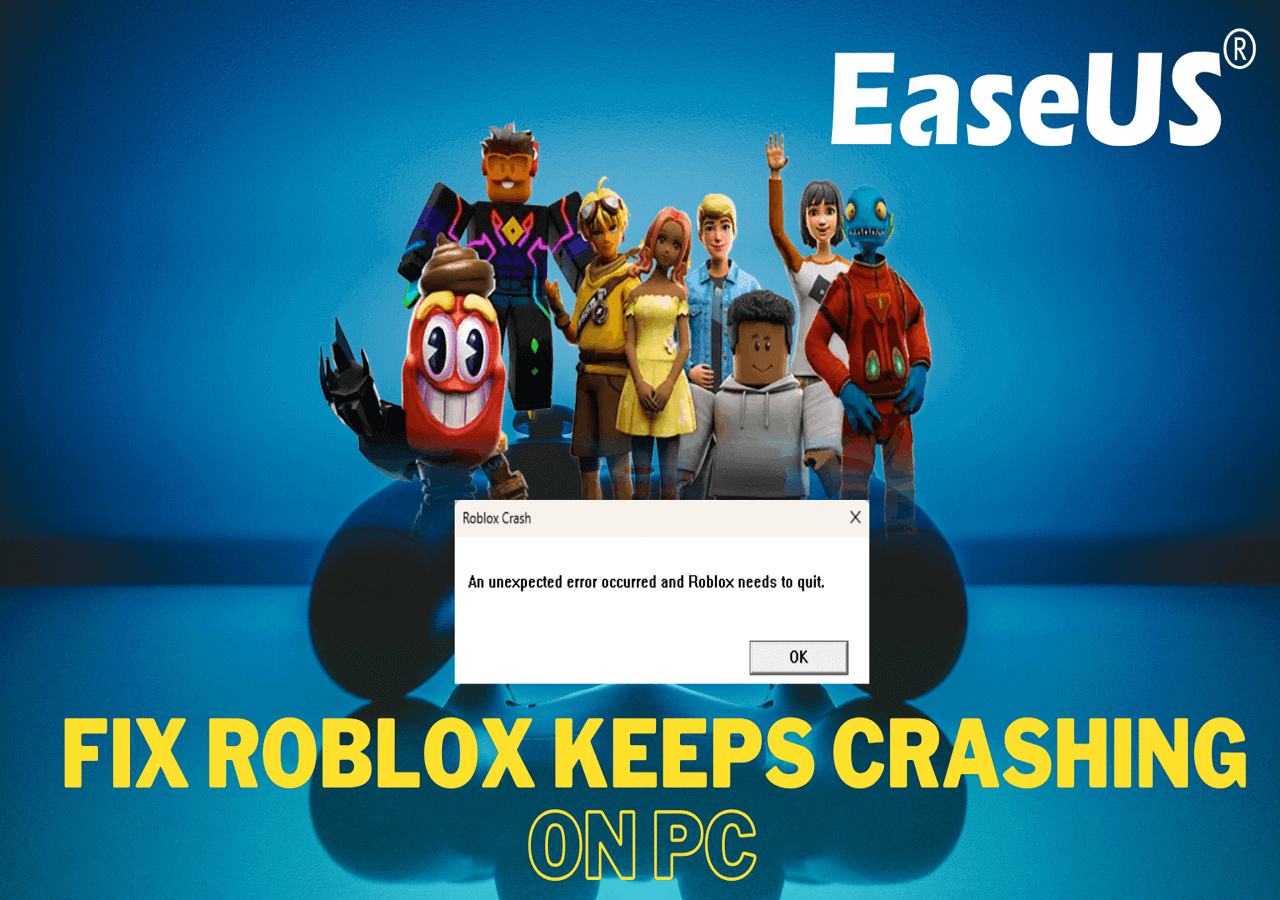
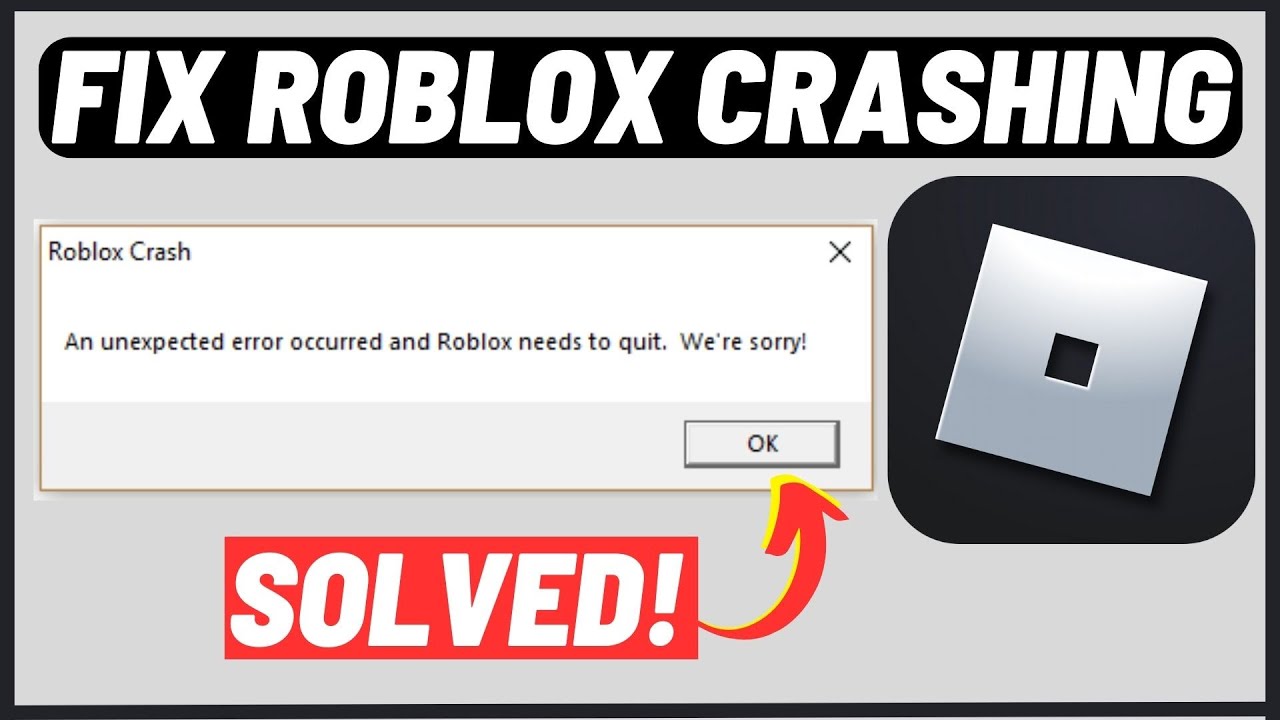
If your Roblox client launches only to crash immediately, it often points to a more specific system or software conflict rather than a general launch failure. This behavior is frequently linked to outdated or corrupted graphics drivers, which can cause rendering errors. Ensure your graphics drivers are fully updated. Another common cause is insufficient system resources; close any unnecessary background applications that might be hogging RAM or CPU. Corrupted Roblox installation files can also lead to instant crashes, in which case a complete uninstallation and fresh reinstallation is your best bet. Check your event viewer for any specific crash logs that might offer clues.
Can internet connection issues prevent Roblox from starting?
Yes, absolutely. While Roblox might appear to launch, a poor or unstable internet connection can prevent the game client from fully initializing, authenticating your account, or downloading necessary game assets, leading to it failing to open completely. Even if your browser works, specific network settings or interruptions can affect game clients. Try resetting your router and modem. Consider flushing your DNS cache by typing 'ipconfig /flushdns' in an elevated Command Prompt. If you use a VPN, try disabling it, as VPNs can sometimes create routing issues. A stable connection is crucial for seamless online gaming experiences, especially for a social platform like Roblox.
How do I troubleshoot if Roblox gets stuck on the 'Starting Roblox...' screen?
Getting stuck on the 'Starting Roblox...' screen is a classic symptom of the client struggling to connect to servers or initialize core components. This often indicates a blockage from your firewall or antivirus software, or a deeper network issue. First, temporarily disable your antivirus/firewall to see if it allows Roblox to proceed. If it does, add Roblox as an exception. Next, ensure your internet connection is robust and stable. Clear your browser's cache and cookies, as this can affect the initial handshake between the website and the game client. If these steps don't work, a clean reinstall of Roblox is often required to resolve any corrupted installation files that might be causing the hang-up.
Is it safe to clear Roblox cache and temporary files?
Yes, it is completely safe to clear Roblox cache and temporary files. These files are designed to be temporary storage for game assets and data, intended to speed up loading times. Over time, however, they can become corrupted or outdated, leading to various launch and performance issues. Clearing them forces Roblox to redownload fresh copies, often resolving problems like the game not opening, crashing, or experiencing glitches. This process does not delete your game progress or account data, which are stored on Roblox's servers. It's a standard troubleshooting step recommended by many technical support teams and can often fix why Roblox isnt opening without much hassle.
Hey there, fellow gamers! Ever carved out some precious time to dive into Roblox, eager to join friends, build something amazing, or just unwind, only to be met with that frustrating silence when the game just won't open? You're not alone. For many of us, gaming is a vital outlet, a way to relax after a long day of work, connect with friends, or even sharpen a few skills. With 87% of US gamers playing regularly, often clocking in 10+ hours a week, and a significant portion balancing it all with jobs and families, every moment counts. When a platform like Roblox, known for its vast social experiences and accessibility, decides to play hard to get, it can truly disrupt your plans.
This isn't just a minor glitch; it's a common pain point for countless players across PC and mobile platforms. We've all been there, staring at a blank screen, wondering 'why isn't Roblox opening?' This comprehensive guide is designed for you: the busy adult gamer who values practical solutions over hype, who wants to troubleshoot quickly and get back to the fun. We'll cover the most common culprits behind Roblox launch failures in 2026, offering clear, actionable steps that respect your time. From checking server status to deep-diving into system configurations, we're here to help you get Roblox up and running smoothly, so you can enjoy your gaming moments without unnecessary stress. Let's fix this together!
Why Does Roblox Stop Working Unexpectedly?
Roblox can cease to function due to a variety of reasons, ranging from simple software glitches to more complex system conflicts. Often, the core issue lies with outdated software components, corrupted game files, or even temporary network disruptions. It's like your favorite sports team suddenly having a bad day; multiple factors can contribute. For instance, a recent update to your operating system or graphics drivers might create an incompatibility that wasn't there before. Server-side problems, though less common, can also prevent access, meaning the issue isn't on your end at all. Understanding these potential causes is the first step in effective troubleshooting for why Roblox isnt opening.
How Can I Check if Roblox Servers Are Down?
Before you dive into complex troubleshooting, always check Roblox's server status. This is the quickest way to rule out an issue that's completely out of your control. Server outages happen, especially for platforms as massive and globally active as Roblox. In 2026, with major platforms constantly updating and expanding, brief downtimes for maintenance or unexpected issues are a reality. You can usually check dedicated server status websites like Downdetector, or visit Roblox's official Twitter/X support accounts, or their status page. If the servers are indeed down, all you can do is wait for the Roblox team to resolve the issue, which they typically do quite swiftly.
What Are the First PC Troubleshooting Steps for Roblox Launch Issues?
When Roblox refuses to open, start with these fundamental PC fixes. First, a simple restart of your computer can often resolve temporary glitches by clearing system memory and resetting processes. Next, ensure your internet connection is stable; a weak or intermittent connection is a common culprit for why Roblox isnt opening. Try restarting your router and modem. Additionally, check for pending Windows updates; an out-of-date OS can lead to compatibility problems. Finally, try running Roblox as an administrator. Right-click the Roblox icon and select 'Run as administrator' to ensure it has the necessary permissions to operate correctly on your system.
How Do I Clear Roblox Cache and Temporary Files?
Accumulated cache and temporary files can often corrupt Roblox's ability to launch or function properly. Think of it like a cluttered desk that makes it hard to find what you need. Clearing these files can resolve many persistent issues. To do this, press Windows Key + R, type '%temp%' and press Enter. Delete all files and folders in the opened 'Temp' directory. Don't worry, these are temporary files your system will regenerate. You should also clear your browser's cache, as Roblox often uses browser components. This simple step can often fix why Roblox isnt opening by removing outdated or damaged data that's confusing the game client.
When Should I Consider Reinstalling Roblox?
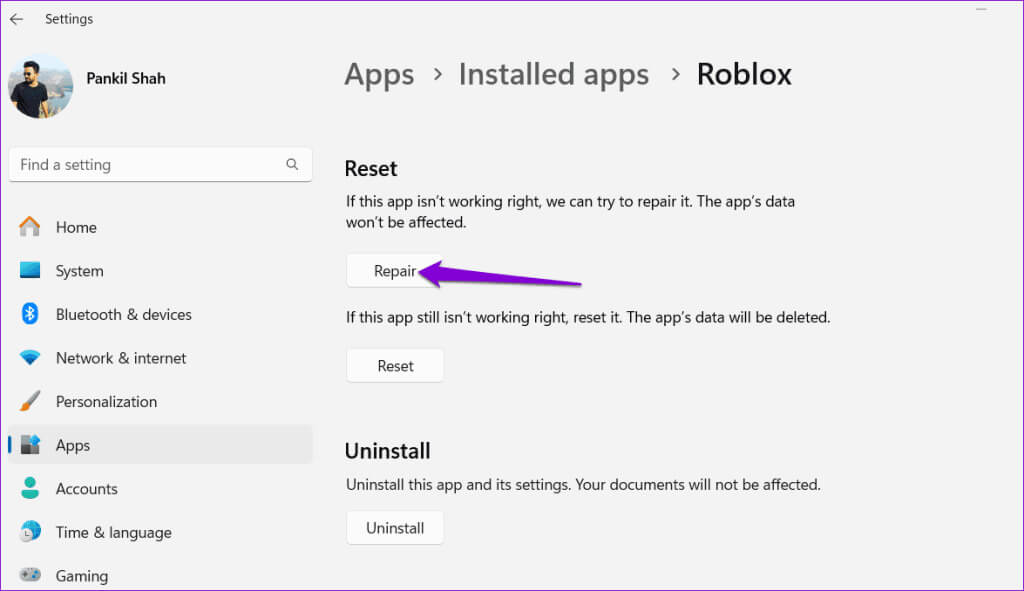
Reinstalling Roblox should be considered a more drastic, but often highly effective, solution if other troubleshooting steps fail. This is particularly useful if you suspect corrupted installation files, which can happen over time or after interrupted updates. A clean reinstall ensures you have the latest, untainted version of the game client. Before reinstalling, make sure to completely uninstall Roblox from your system via 'Add or Remove Programs' in Windows Settings. After uninstallation, restart your computer, then download the latest Roblox installer directly from the official Roblox website. This fresh start often resolves deep-seated issues that prevent Roblox from opening.
Can My Antivirus or Firewall Block Roblox?
Absolutely, your antivirus software or firewall can sometimes mistakenly identify Roblox as a threat, preventing it from launching or connecting to servers. This is a common scenario for many online games, especially with robust security suites. In 2026, security software is more sophisticated but can still be overzealous. To check if this is the issue, try temporarily disabling your antivirus and firewall, then attempt to launch Roblox. If it opens, you'll need to add Roblox to your security software's exception or whitelist. This allows Roblox to run without interference while maintaining your system's protection. Remember to re-enable your security software after testing!
How Important Are Graphics Drivers for Roblox Performance?
Graphics drivers are crucial for any game, including Roblox, especially on PC. Outdated or corrupted graphics drivers can cause a myriad of problems, from poor performance to preventing the game from launching altogether. Roblox, while seemingly simple, leverages your GPU for rendering its vast worlds and detailed player creations. Ensuring your drivers are up-to-date is like making sure your car has fresh oil; it runs smoother and more reliably. You should regularly check for updates from your graphics card manufacturer (NVIDIA, AMD, Intel) and install them. This simple maintenance often fixes why Roblox isnt opening and improves overall in-game experience, which is vital for gamers who value smooth gameplay.
What About Network Issues and Roblox?
Network problems can often be subtle yet devastating to your gaming experience. Even if your internet 'works,' specific settings or conflicts can prevent Roblox from connecting. DNS issues, VPN interference, or even certain network adapter settings can all be culprits. Try flushing your DNS cache by opening Command Prompt as administrator and typing 'ipconfig /flushdns'. Consider switching to a public DNS like Google DNS (8.8.8.8 and 8.8.4.4) for potentially faster and more reliable connections. If you're using a VPN, try disabling it temporarily. For gamers, especially those who rely on stable connections for social games, optimizing network settings can make all the difference in getting Roblox to open and run smoothly.
Conclusion
Dealing with Roblox not opening can be a real headache, especially when you're just looking for some quality gaming time. We've covered a range of troubleshooting steps, from the quick and easy server checks to more involved solutions like reinstalling the game or adjusting security settings. The key is often patience and a systematic approach. By tackling common issues like outdated drivers, corrupted files, and network quirks, you can usually get back into the action swiftly. Remember, the gaming community is vast and supportive, and these kinds of technical challenges are something we all face from time to time. Don't let a technical snag keep you from building, playing, and socializing in your favorite Roblox experiences.
What's your biggest gaming challenge with Roblox or other platforms? Comment below and let's help each other out!
FAQ Section
Why is my Roblox not opening on my Windows 11 PC?
Your Roblox might not be opening on Windows 11 due to compatibility issues, outdated graphics drivers, or conflicts with security software. Ensure your Windows 11 is fully updated, clear Roblox cache, and try running the game as an administrator. Check for any pending graphics driver updates from your GPU manufacturer, as Windows 11 often introduces new requirements.
How do I fix Roblox not opening after an update?
If Roblox stops opening after an update, the new files might be corrupted or conflicting with existing data. First, restart your PC. Then, clear your Roblox cache and temporary files. If that doesn't work, completely uninstall Roblox, restart your computer, and perform a fresh installation from the official website to ensure all components are new.
Is there a way to force Roblox to open?
While you can't truly 'force' Roblox, you can take steps to ensure it launches correctly. Run the application as an administrator, ensuring it has all necessary system permissions. Check Task Manager to confirm no lingering Roblox processes are preventing a fresh launch. Sometimes, manually ending these processes can allow the game to start cleanly.
What should I do if Roblox opens but then crashes immediately?
If Roblox crashes immediately after opening, it often points to a graphics driver issue, insufficient system resources, or corrupted game files. Update your graphics drivers to the latest version. Close unnecessary background applications to free up RAM. If problems persist, a full reinstallation of Roblox is recommended to address potentially corrupted files.
Can a poor internet connection cause Roblox not to open?
Yes, a poor or unstable internet connection can absolutely prevent Roblox from opening or connecting to its servers. Roblox requires a consistent connection to verify your account and load game assets. Restart your router and modem, ensure no other devices are hogging bandwidth, and consider testing your connection speed to rule out network instability.
Does Roblox have minimum system requirements that could prevent it from opening?
Yes, Roblox does have minimum system requirements for PC and mobile. If your device falls below these, it might struggle to launch or run the game properly. Ensure your OS is supported (Windows 7/8.1/10/11), you have at least a 2008 processor with 1.6 GHz, 1 GB of RAM, and DirectX 9 or OpenGL 1.1 support. Check your system specs against the official Roblox requirements.
How do I resolve 'An error occurred while starting Roblox' messages?
Error messages during Roblox startup usually indicate specific problems. Check the exact error code if provided. Common fixes include clearing your web browser's cache, ensuring your internet security (antivirus/firewall) isn't blocking Roblox, and making sure Roblox is fully updated. Corrupted installation files often cause such errors, making a reinstallation a strong solution.
Roblox not opening troubleshooting guide, Check server status, Clear cache and temporary files, Update graphics drivers, Reinstall Roblox client, Disable antivirus temporarily, Resolve network issues, Admin privileges for Roblox.
35


Fix Roblox Not Launching On PC Laptop 2025 Roblox Not Opening YouTube . How To Fix Roblox Not Opening Or Launching In Windows 11 YouTube . How To Message On Roblox 2026 A Quick Guide . Roblox 2026 Logo REVEALED New Color New Look YouTube Maxres2 . How To Message On Roblox 2026 A Quick Guide SL1500



What Is Garhorse Roblox And Why Is It Popular In 2026 Updated Roblox. Roblox Wont Start Heres What To Do Why Roblox Wont Open . Upcoming Latest Roblox Games 2025 2026 Guide Upcoming Roblox Games And Features To Expect In 2026.webp. Roblox 2026 Insider Reveals Platform Evolution Safety 4000x4000bb . How To FIX Roblox Not Opening In Microsoft Store YouTube


Why Is Roblox Not Working June 2026 24 Fixes That Actually Work Why Is Roblox Not Working 2025 24 Fixes That Actually Work . How To Fix Roblox Not Opening On Microsoft Store YouTube . Roblox At GDC 2026 Where To Find Us All Week Roblox. Roblox Troubles Lets Get You Playing . How To Fix Roblox Not Opening On Microsoft Store YouTube


WHY ROBLOX ISN T FUN ANYMORE YouTube . Genshin Impact Steam In 2025 Everything You Should Know SOLVED Why Isnt Roblox Working . Roblox Glitching Lets Figure It Out Roblox Keeps Crashing . How Do You Pronounce Roblox Correctly For 2026 1200x1769 . Is Roblox Down Right Now Issues Why Is Roblox Not Working



Can T Open Roblox Studio Platform Usage Support Developer Forum . How To Imstall Roblox Easily In 2026 Your Ultimate Guide Install Roblox Step 30 . Roblox Not Working On Windows 11 Lets Fix It Repair Roblox On Windows 1024x591 1 . Roblox Keeps Crashing Why Does My Roblox Keep Crashing Mobile TikTok . Why Is Roblox Not Connecting To The Internet Dibujos Cute Para Imprimir



Why Is Roblox Not Opening On My PC H Ng D N Kh C Ph C L I Chi Ti T . Formula Racing 2026 Play On Roblox NoFilter. Why Is Your Roblox Screen Flashing White And How To Fix It Easily . Why Isnt Roblox Opening YouTube . UPD Open Wheel Racing 2026 Roblox NoFilter

Why Is Roblox Not Opening On My PC H Ng D N Kh C Ph C L I Chi Ti T . What Roblox Will Look Like In 2026 A Glimpse Into The Future By . Why Is Roblox So Popular Lets Unpack It Why Is Roblox Not Working . Roblox Not Working On Windows 11 24h2 Logo Icon . Roblox Troubles Lets Get You Playing Fix Roblox Wont Open Microsoft Store