Are you a busy adult gamer looking for a fun, social, and flexible gaming experience that fits into your packed schedule? This comprehensive guide will walk you through everything you need to know about the installer Roblox PC process, ensuring a smooth setup and optimal performance. Many adult gamers, around 36 years old on average, juggle work, family, and personal commitments, making efficient and enjoyable gaming a priority. Roblox offers a unique platform where creativity knows no bounds, providing endless user-generated experiences from casual adventures to competitive challenges. Installing Roblox on your PC opens up a world of possibilities, from connecting with friends to exploring new virtual realms. We will cover system requirements, step-by-step installation, troubleshooting common issues, and even tips for optimizing your gameplay. Discover how easy it is to get started and enhance your gaming lifestyle, making the most of your valuable leisure time with the robust PC version of Roblox.
How do I find the official Roblox PC installer download?
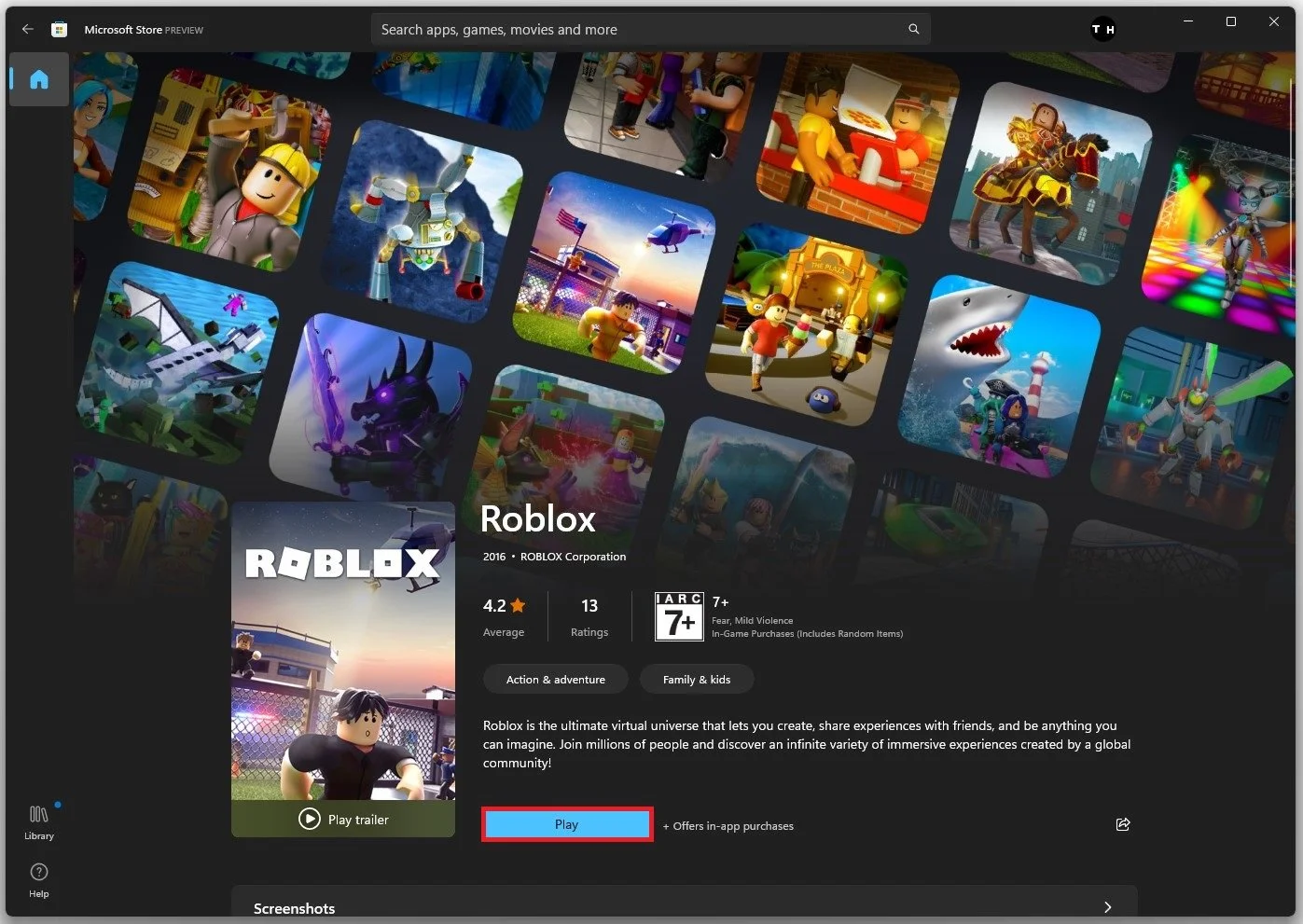
The official Roblox PC installer is typically downloaded directly from the Roblox website. Simply visit roblox.com, log in to your account, and click the 'Play' button on any game. Your browser will then prompt you to download the 'RobloxPlayerLauncher.exe' file, which is the official installer. Always use the official site to ensure security and prevent malware.
What are the minimum system requirements for Roblox on PC?
For a smooth experience, your PC should have Windows 7, 8.1, 10, or 11. An Intel or AMD processor from 2005 or newer (1.6 GHz or better), at least 1 GB of RAM, and 20 MB of disk space for the installation are recommended. A graphics card supporting DirectX 9 and Shader Model 2.0 is also necessary. These specs ensure most modern computers can run Roblox effectively.
Why is my Roblox installer not launching on my PC?
If your Roblox installer is not launching, first check your internet connection for stability. Temporarily disabling your antivirus or firewall may help, as they can sometimes block the executable. Right-clicking 'RobloxPlayerLauncher.exe' and selecting 'Run as administrator' can also resolve permissions issues. Ensure you've downloaded the file from the official Roblox website.
Can I install Roblox on a Mac or Linux PC?
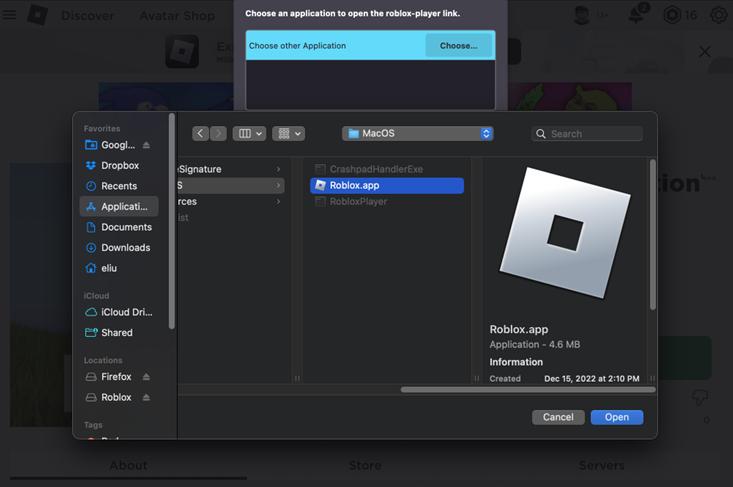
Yes, Roblox is officially supported on Mac computers. You can follow a similar installation process by downloading the player from roblox.com. For Linux PCs, Roblox is not natively supported. However, some users have success running it through compatibility layers like Wine, though this method is not officially sanctioned and may require technical know-how.
How do I update my Roblox PC client after installation?
The Roblox PC client typically updates automatically. When you launch Roblox, either through the desktop shortcut or by clicking 'Play' on roblox.com, the launcher will check for and apply any necessary updates before opening the game. This ensures you always have the latest features and security patches without manual intervention.
Is it safe to download the Roblox installer from third-party sites?
No, it is generally not safe to download the Roblox installer from third-party websites. Doing so significantly increases your risk of downloading malicious software, viruses, or outdated versions that could compromise your PC's security. Always obtain the official 'RobloxPlayerLauncher.exe' file directly from roblox.com to ensure a secure and legitimate installation.
What if my Roblox games are lagging after installation?
If Roblox games are lagging post-installation, start by adjusting the in-game graphics settings to a lower quality. Ensure your graphics drivers are up to date and close any unnecessary background applications consuming system resources. Verify your internet connection is stable, and consider a wired connection for better latency. A system restart can also sometimes improve performance.
As a modern gamer, you understand the balancing act: work, family, responsibilities, and that precious sliver of time you carve out for yourself to unwind with your favorite games. You crave relaxation, fun, and perhaps a bit of social interaction, but without the endless grind or overwhelming complexity. Many of us, part of the 87 percent of US gamers who play regularly, averaging over 10 hours a week, want accessible entertainment that fits our busy lives. This month, social and cozy games are trending, and Roblox fits that bill perfectly, offering a vast universe of user-created experiences. But how do you get this popular platform running smoothly on your computer? This guide is your trusted friend, here to simplify the installer Roblox PC process, helping you optimize your experience so you can jump straight into the fun without the usual setup headaches.
You might be wondering if Roblox is just for kids, but the reality is that its diverse content appeals to all ages, including a significant adult audience. It's a fantastic way to connect with friends, engage in skill-building mini-games, or simply de-stress after a long day. This article will walk you through every step, from initial download to performance tweaks, ensuring your Roblox PC installation is seamless and your gaming sessions are pure enjoyment. Say goodbye to frustrating technical issues and hello to a world of endless possibilities, all from the comfort of your PC.
What is Roblox and why should I install it on PC?
Roblox is a global platform where millions of users create, share, and play immersive 3D experiences. Think of it less as a single game and more as a vast ecosystem of user-generated content, ranging from adventure games and simulations to role-playing and competitive challenges. For the average gamer, around 36 years old, installing Roblox on PC offers significant advantages over mobile. You get better graphics, more precise controls with keyboard and mouse, and often a more stable performance, especially in graphically intensive experiences. It's a fantastic avenue for social play, allowing you to connect with friends and family in virtual worlds, a trend that continues to dominate US gaming habits this month.
The PC version provides a more robust and comfortable experience, letting you enjoy longer gaming sessions without worrying about battery life or small screens. It's perfect for those who value performance optimization and want to truly immerse themselves in the virtual worlds Roblox offers. Plus, it’s a great way to stay current with popular gaming trends without breaking the bank, as countless experiences are free to access.
How do I prepare my PC for the Roblox installation?
Before you dive into the installer Roblox PC process, a quick check of your system ensures a smooth experience. Most modern PCs will run Roblox without issue, but meeting the minimum requirements prevents frustrating lag or crashes. You'll need an operating system like Windows 7, 8.1, 10, or 11. Your processor should be at least 1.6 GHz, with 1 GB of RAM and 20 MB of available system storage for the initial installation. A graphics card that supports DirectX 9 and Shader Model 2.0 or higher is also recommended for optimal visuals.
It's always a good idea to ensure your graphics drivers are up-to-date. You can usually do this through your graphics card manufacturer's software (NVIDIA GeForce Experience, AMD Radeon Software, or Intel Graphics Command Center). Also, close unnecessary background applications to free up system resources for Roblox, leading to better performance, especially if you have an older machine or limited RAM.
What are the official steps to perform the installer Roblox PC process?
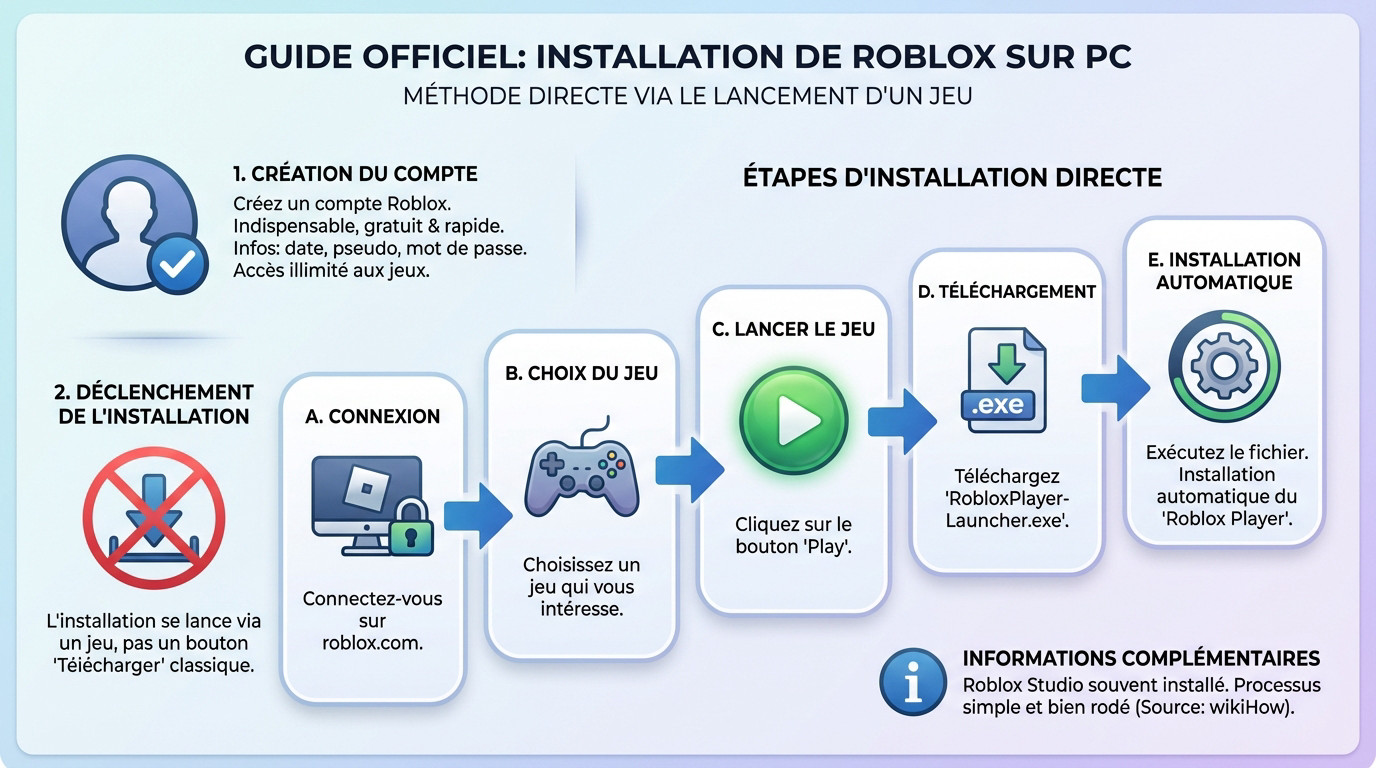
Installing Roblox on your PC is surprisingly straightforward. Here’s a numbered list to guide you through the official process:
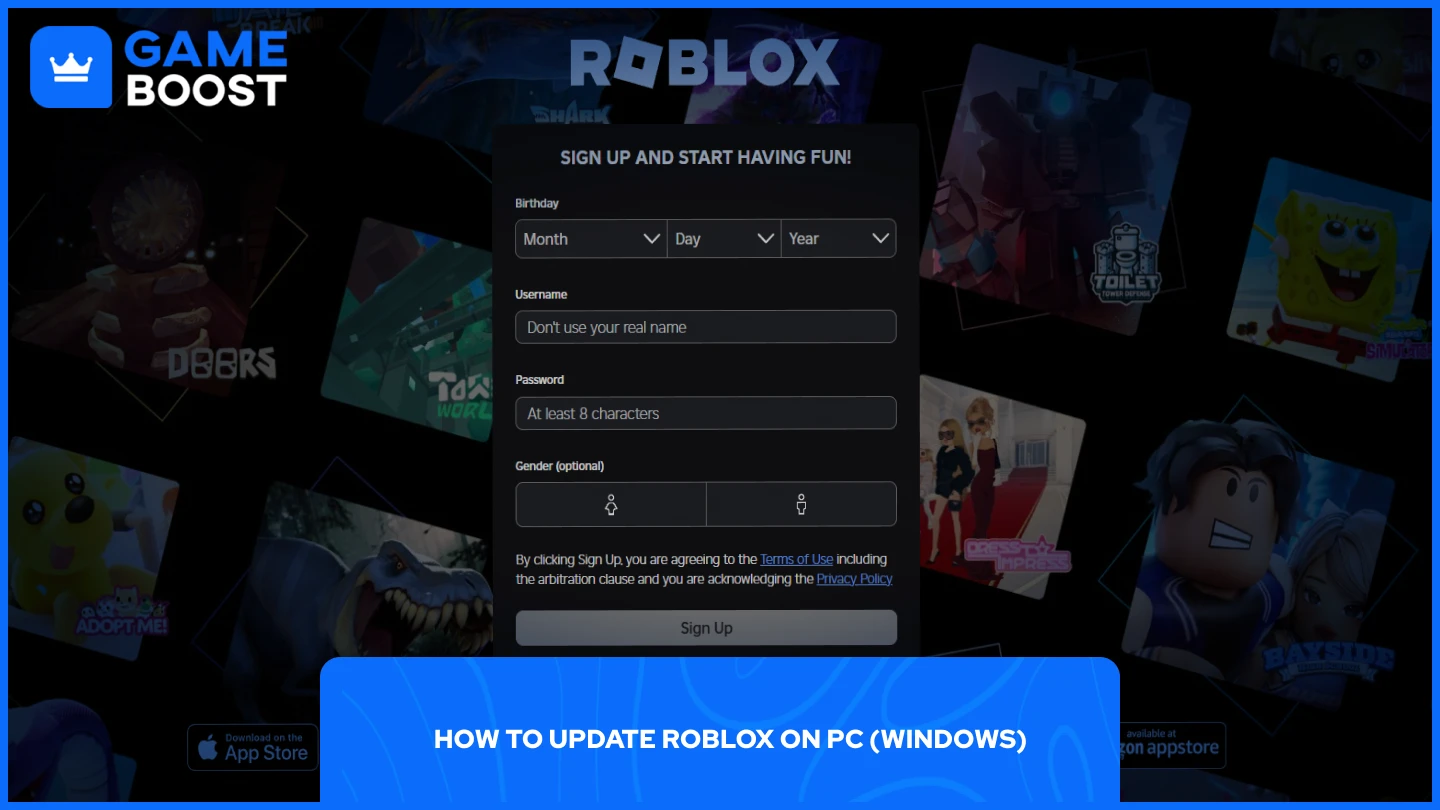
Create a Roblox Account: If you don't already have one, navigate to the official Roblox website (roblox.com) and sign up. It's free and only requires basic information like your birth date, username, and password.
Find a Game to Play: After logging in, browse the vast library of experiences. Once you find a game that piques your interest, click on its thumbnail to go to its specific page.
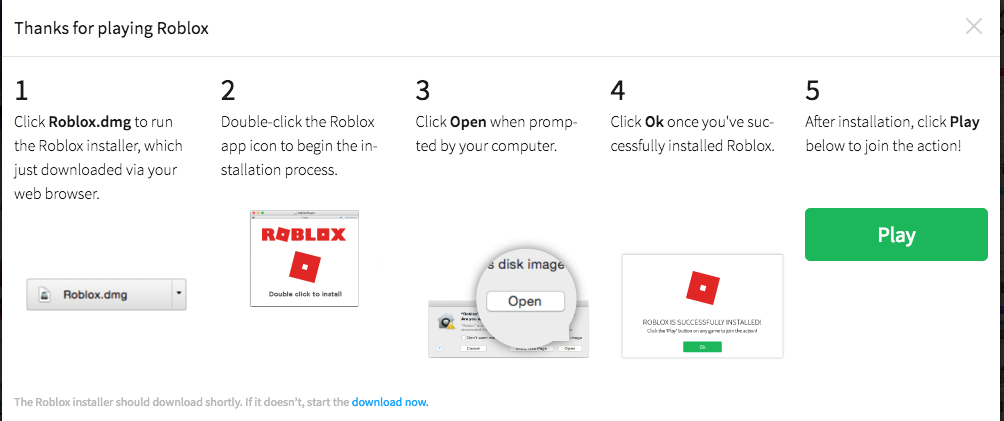
Initiate the Download: On the game's page, you'll see a green 'Play' button. Clicking this button will prompt the Roblox Player to download. If it's your first time, your browser will ask to download the 'RobloxPlayerLauncher.exe' file.
Run the Installer: Locate the downloaded 'RobloxPlayerLauncher.exe' file (usually in your 'Downloads' folder) and double-click it. This will start the installer Roblox PC process.
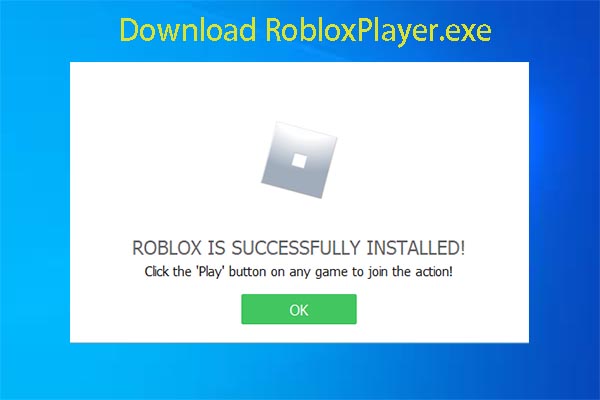
Follow On-Screen Prompts: The installer will automatically download and install the necessary Roblox files. You might see a progress bar. Once complete, a confirmation message will appear, and the game you selected will automatically launch.
Launch Roblox Again: For future sessions, you can launch Roblox directly from the desktop shortcut created during installation, or by visiting roblox.com and clicking the 'Play' button on any game.
This entire process typically takes only a few minutes, getting you into the action quickly. It's designed to be user-friendly, catering to gamers who prefer minimal fuss and maximum play time.
How can I troubleshoot common Roblox installation issues on PC?
Even with a straightforward installer Roblox PC process, hiccups can occur. Don't worry, most problems have simple solutions. Here are common issues and how to fix them:
Installer Not Launching: Ensure your internet connection is stable. Temporarily disable your antivirus or firewall, as they can sometimes block legitimate installers. Also, try running the 'RobloxPlayerLauncher.exe' file as an administrator by right-clicking it.
Installation Failed/Stuck: Clear your browser cache and cookies before re-downloading the installer. Check your disk space; though Roblox doesn't need much, other applications might be hogging space. A full system restart can often resolve temporary conflicts.
Roblox Player Not Opening After Install: Make sure your system meets the minimum requirements. Update your graphics drivers. Sometimes, corrupted Roblox files are the culprit; uninstall Roblox completely via Windows' 'Add or remove programs' and then reinstall it from scratch.
Error Codes: If you receive a specific error code, a quick search on the official Roblox Support page or forums can often provide a direct solution. Common errors often relate to internet connectivity or corrupted game files.
Remember, patience is key. Most issues are minor and can be resolved with these basic troubleshooting steps, getting you back to gaming in no time.
How do I optimize Roblox PC performance for a smooth gaming experience?
For gamers balancing life and play, a smooth, lag-free experience is crucial. Optimizing Roblox on your PC can significantly enhance your enjoyment. Here’s how:
Adjust In-Game Graphics Settings: Once in a Roblox experience, go to the in-game menu (usually by pressing 'Esc'). Navigate to 'Settings' and lower the 'Graphics Mode' or 'Graphics Quality' slider. Start with automatic and reduce it gradually until you find a balance between visuals and performance. This is the quickest way to boost FPS.
Update Graphics Drivers: As mentioned before, outdated drivers can cause performance bottlenecks. Regularly check for updates from NVIDIA, AMD, or Intel.
Close Background Applications: Before launching Roblox, close web browsers, streaming services, and other programs that consume CPU, RAM, or network bandwidth. Use Task Manager (Ctrl+Shift+Esc) to identify resource-heavy apps.
Ensure Sufficient Cooling: If your PC runs hot, it can throttle performance. Make sure your computer’s fans are clean and unobstructed. For laptops, consider a cooling pad.
Use a Wired Internet Connection: While not directly performance-related for graphics, a stable wired connection reduces latency and lag, crucial for smooth online play, especially in social games.
These adjustments can turn a choppy experience into a fluid one, letting you fully appreciate the creativity within Roblox without frustration.
Can I play Roblox with friends across different devices (PC, mobile, console)?
Absolutely! One of Roblox's biggest strengths, and a major trend this month in social gaming, is its excellent cross-platform compatibility. Whether you install Roblox on PC, play on a smartphone, tablet, Xbox, PlayStation, or even a Meta Quest VR headset, you can join the same experiences and play with your friends. This cross-play feature is fantastic for busy adults who want to connect with their kids, friends, or family members, regardless of their preferred gaming device.
This means if you're on your PC and your friend is on their iPad, you can still meet up in your favorite Roblox game, chat, and embark on adventures together. It truly embodies the social aspect of modern gaming, making it easy to maintain connections and share fun moments without hardware barriers.
What are some great Roblox games for busy adults looking to relax or socialize?
Roblox isn't just about fast-paced action; it's a treasure trove of experiences perfect for unwinding or connecting. For adults, especially those who enjoy social or cozy gaming, here are a few trending types of games:
Tycoon Games: These are simulation games where you build and manage your own business or empire. They’re relaxing, offer a sense of progression, and can be played at your own pace. Examples include Retail Tycoon and Mining Simulator.
Role-Playing Games (RPGs): Experiences like Adopt Me! or Bloxburg allow you to live a virtual life, customize homes, raise pets, and interact with other players. They are excellent for social engagement and creative expression.
Obby (Obstacle Course) Games: Simple, fun, and often collaborative, obbies are great for a quick mental break. They test your platforming skills in a low-stakes environment, perfect for a short burst of fun.
Story-Driven Adventures: Many creators on Roblox craft compelling narratives that offer a more guided experience, akin to traditional story games, without requiring huge time commitments.
These experiences provide a great way to de-stress, build skills (like management or problem-solving in tycoons), and socialize with a community, all while fitting into a busy schedule.
How can I ensure my Roblox PC installation is secure and up-to-date?
Security and staying current are paramount for any online platform, especially one as popular as Roblox. Here's how to keep your installer Roblox PC environment safe and fresh:
First, always download the installer only from the official Roblox website (roblox.com). Avoid third-party sites that promise
Official Roblox PC installation steps, System requirements for Roblox, Troubleshooting Roblox PC installer issues, Optimizing Roblox performance on computer, Cross-play capabilities, Free-to-play Roblox explained, Secure Roblox download, Balancing gaming and life with Roblox.
35



How To Download Roblox On Laptop PC Install Roblox On Windows . Installer Roblox Sur PC Windows 10 11 Simple Et Rapide YouTube . How To Install Roblox On A Computer Easily 2026 Guide 5 Install Roblox. How To Install Roblox On A Computer Easily 2026 Guide Select Roblox And Click. How To Install Roblox On A Computer Easily 2026 Guide


How To Install Roblox On A Computer Easily 2026 Guide . How To Update Roblox On PC Mobile Console 2026 Guide C54c81b2 Cc3a 47b7 Bc75. How To Install Roblox On Windows Pc Image. Installer Roblox PC La M Thode Officielle Et Gratuite Guide Officiel De Roblox Sur Pc . How To Install Roblox On A Computer Easily 2026 Guide Install Roblox Step 30


Comment Installer Roblox Sur PC Guide Facile 2026 YouTube . How To Download Install Roblox On PC Laptop Windows 11 10 FULL . How To Download And Install Roblox On Laptop PC 2026 YouTube . How To Download Roblox On PC Laptop Install Roblox On Windows . How To Install Roblox On A Computer Easily 2026 Guide





Comment T L Charger Roblox Sur Votre PC Installer Roblox Sur PC YouTube . Comment Installer ROBLOX Sur Votre PC YouTube . How To Update Roblox In 2026 Fix Error Code 280 On PC Mobile Xbox Roblox Update It.webp. How To Download And Install Roblox On Windows PC Guide Rob . How Do You Update Roblox On Windows 11 For 2026

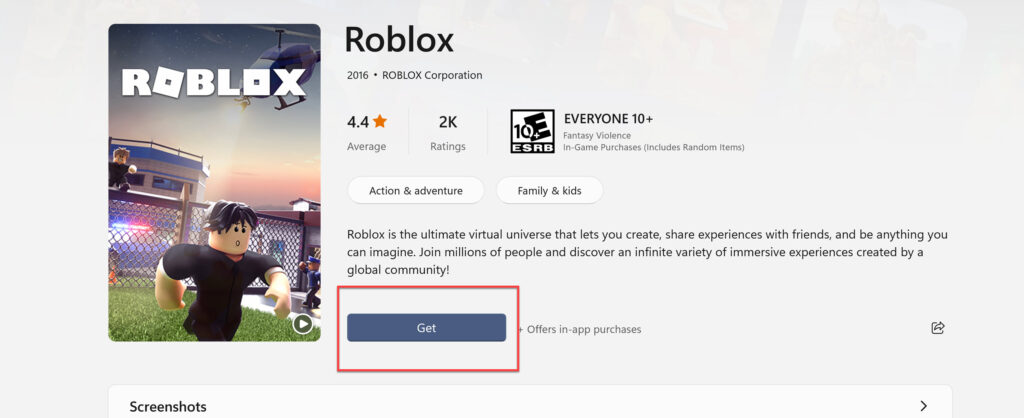

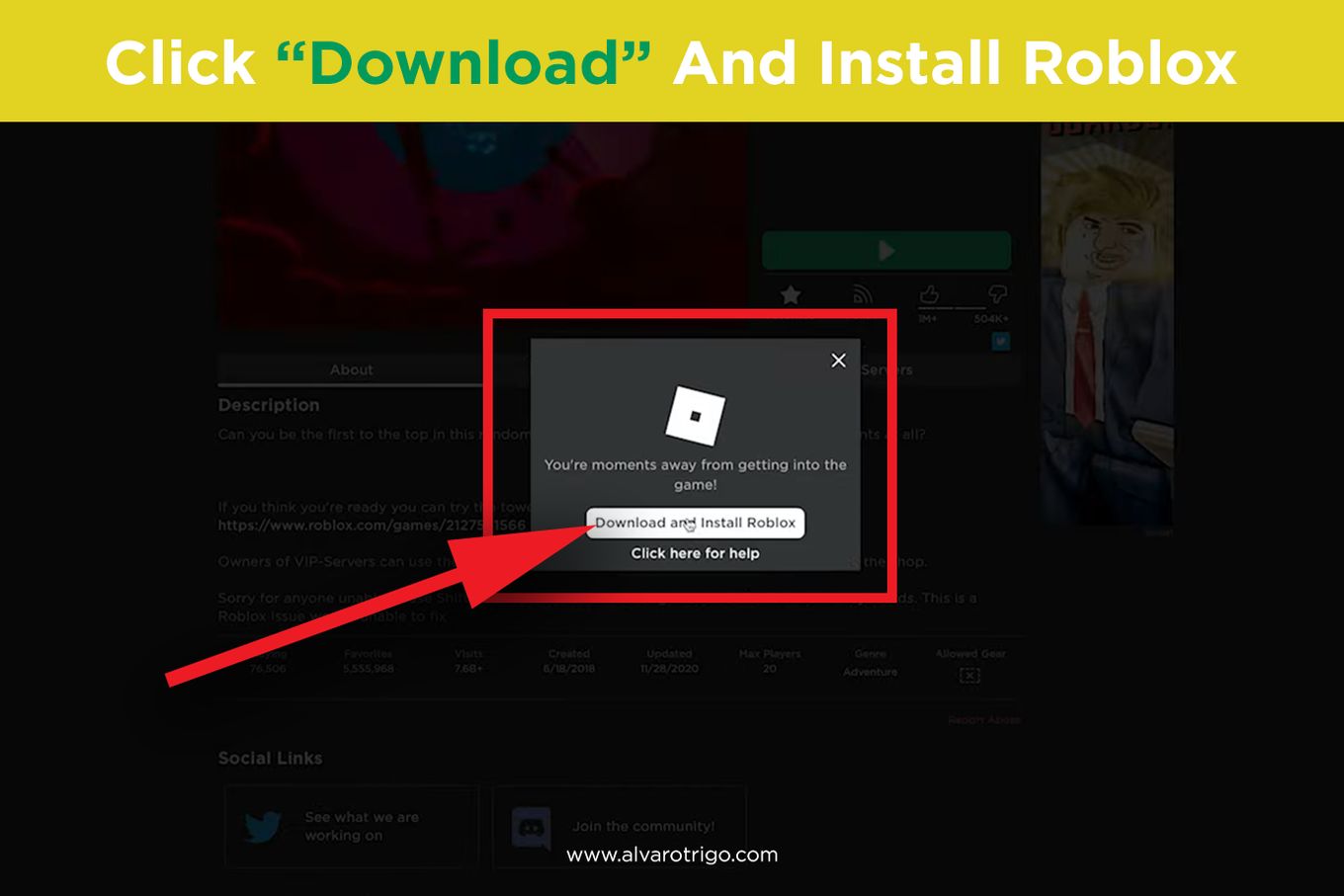
Comment Installer Roblox Sur Mon Ordinateur RDPI . How To Install Roblox On Your Windows 11 PC Or Laptop Techschumz 2022 04 26 11 04 3200008 Techschumz 1024x418 . How To Download Roblox On Any Device Easily In 2026 Roblox Download . How To Download Roblox Images In 2026 A Quick Guide Download And Install . How Do You Update Roblox On Windows 11 For 2026


How To Install Roblox On A Computer Easily 2026 Guide Image Asset . How To Install Roblox On A Computer Easily 2026 Guide . Is Roblox EXE Download Safe For Gaming In 2026 Download Exe Thumbnail . How To Download And Install Roblox On PC And Laptop Windows 10 11 2026 . How To Download Roblox On Any Device Easily In 2026 1200x1769


Is Roblox EXE Download Safe For Gaming In 2026 How To Download Roblox On Pc Via Website 10 . How Do You Update Roblox On Windows 11 For 2026 . How To Download Roblox Images In 2026 A Quick Guide . Comment Installer Roblox Pc Comment R Installer Roblox TTFLX . Comment Telecharger Et Installer Roblox Sur Pc YouTube