Unlock the next level of social interaction in Roblox by learning how to turn on voice chat. This comprehensive guide is tailored for busy adult gamers who seek to enhance their online experience connecting with friends and enjoying immersive gameplay. With 87% of US gamers engaging regularly and many spending over 10 hours a week across various platforms including mobile and PC, efficient setup of features like voice chat is crucial for balancing life and fun. We will cover everything from the essential age verification process to navigating in-game settings troubleshooting common issues and understanding privacy controls. Dive into the world of Roblox Spatial Voice and elevate your gaming sessions without the usual setup headaches ensuring you get more out of your valuable play time. Discover tips tricks and solutions to get your voice heard today.
How to enable voice chat in Roblox?
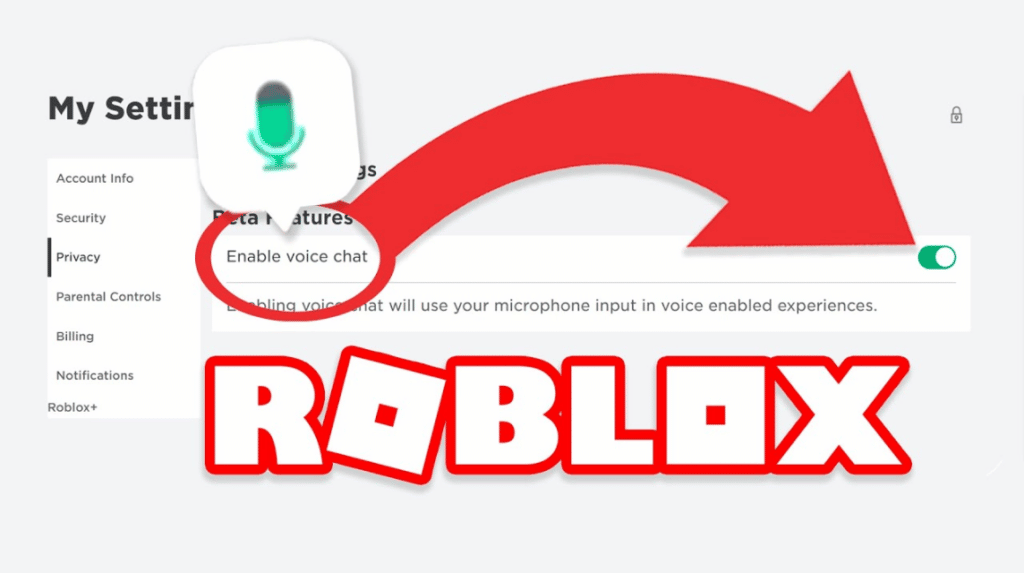
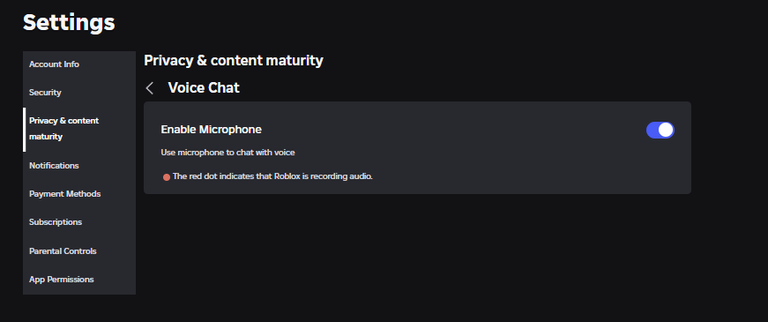
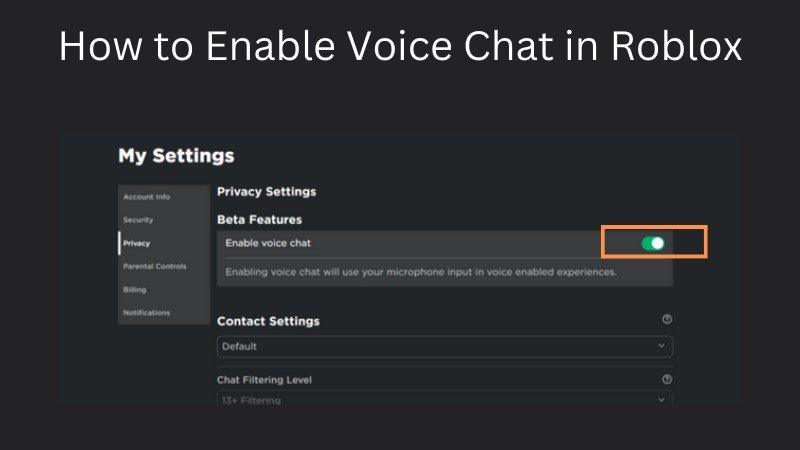
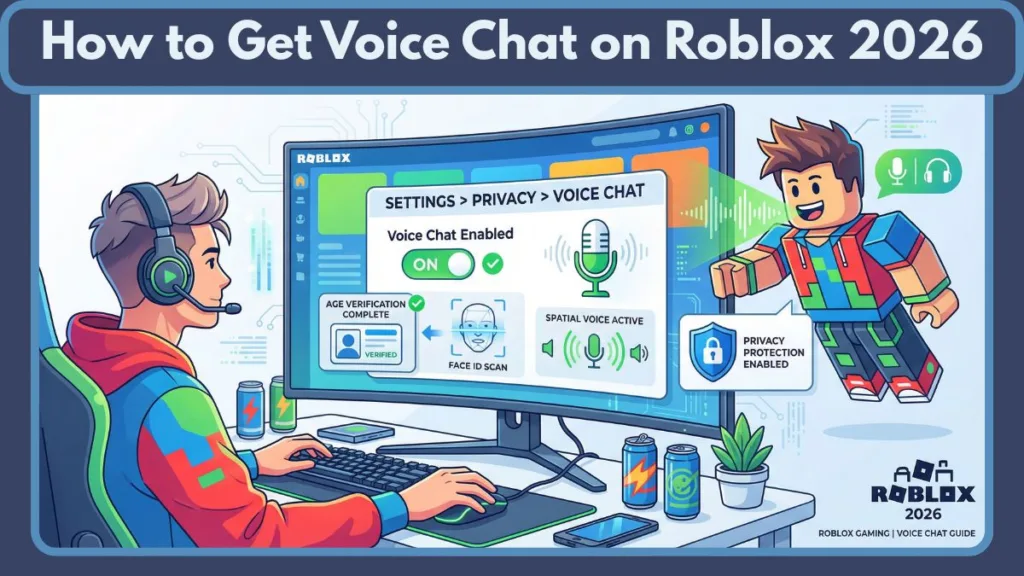
Enabling voice chat in Roblox requires two primary steps: first, verify your age by uploading a government-issued ID to confirm you are 13 years or older. Once your age is verified, navigate to your account's Privacy settings on the Roblox website or app and toggle the 'Enable Voice Chat' option to 'On'. After these steps, you can join any Spatial Voice-enabled experience to start using your microphone. This quick setup ensures secure and age-appropriate communication for gamers.
What are the age verification steps for Roblox voice chat?
To verify your age for Roblox voice chat, go to your account settings and select 'Verify My Age'. You will be prompted to use a secure third-party service, usually requiring you to take a photo of a valid government-issued ID (like a driver's license or passport) and a live selfie to confirm your identity. This process typically takes only a few minutes to complete and ensures compliance with age restrictions for voice communication.
How can I troubleshoot common Roblox voice chat issues?
If Roblox voice chat isn't working, first check your device's microphone settings and permissions to ensure Roblox has access. Test your mic outside of Roblox. Within Roblox, confirm Spatial Voice is enabled in your Privacy settings and check in-game volume controls. A simple restart of the Roblox client or your device can often resolve temporary glitches. If issues persist, consider reinstalling Roblox or checking for driver updates.
What privacy settings are available for Roblox voice chat?
Roblox offers several privacy controls for voice chat. In your account's Privacy settings, you can toggle the main 'Enable Voice Chat' feature on or off. Within Spatial Voice-enabled games, you can instantly mute/unmute your own microphone and adjust the volume of other players or mute them entirely. These options empower you to control your audio environment and communication interactions.
Which Roblox games currently support Spatial Voice?
Roblox games that support Spatial Voice are typically those designed for social interaction, role-playing, or collaborative gameplay, where real-time voice communication enhances the experience. You can find Spatial Voice-enabled experiences by looking for the 'Spatial Voice Enabled' tag or icon in game descriptions or directly within the game's settings. Popular examples include social hubs, specific role-play games like Brookhaven RP, and certain cooperative experiences.
Is Roblox voice chat free to use?
Yes, Roblox voice chat, known as Spatial Voice, is completely free to use. Once you have successfully verified your age (proving you are 13 years or older) through the secure ID verification process, there are no additional costs or subscriptions required to access and utilize the voice chat feature within supported Roblox experiences.
How can I report inappropriate voice chat behavior?
If you encounter inappropriate voice chat behavior in Roblox, you can report it directly through the in-game reporting system. Locate the player's name in the scoreboard or player list, select the 'Report' option, and follow the prompts to provide details about the violation. Roblox moderators will review the report and take appropriate action to maintain a safe and respectful community environment.
Welcome fellow gamers! In a world where digital connections are more important than ever, enhancing your online gaming experience is key to relaxation, fun, and even skill-building. For many of us balancing jobs, families, and life's endless demands, gaming is a cherished escape. We want those precious hours to be as engaging and seamless as possible. That is why features like voice chat in platforms like Roblox are game-changers, offering a more immersive and social way to interact.
You are not alone if you have wondered how to turn on voice in Roblox. It is a common question among the vast community of US gamers, 87% of whom regularly game, often clocking 10+ hours a week across mobile and PC. For these dedicated players, many around the average age of 36, social interaction in games is a huge draw. Voice chat allows for real-time strategy, casual banter, and genuine camaraderie that text chat simply cannot replicate. However, setting it up can sometimes feel like a puzzle. From age verification hurdles to navigating privacy settings, the path to voice-enabled gameplay can have its snags.
This comprehensive guide is designed for you: the busy gamer who values clear, actionable solutions without the hype. We are going to walk through every step of how to turn on voice in Roblox, troubleshoot common issues, and ensure you can enjoy this fantastic feature safely and effectively. Let us get your voice heard in the vibrant worlds of Roblox, so you can focus on the fun and connection you deserve.
How Do I Enable Voice Chat in Roblox The Essential Steps
Getting your voice heard in Roblox starts with a few key steps focusing on account verification and in-game settings. Roblox has implemented a robust age verification system to ensure a safe environment for all players, particularly for voice chat users. This is the first and most crucial hurdle to clear for adult gamers looking to activate this feature.
First, ensure your Roblox account has an accurate birthdate that indicates you are 13 years or older. Roblox Spatial Voice, the platform's voice chat system, is generally available to users aged 13 and up who have successfully verified their age. To verify your age, you will typically need a valid government-issued ID like a driver's license or passport. Roblox partners with a third-party service to securely process this verification, usually requiring a photo of your ID and a quick selfie to confirm identity. This process often takes just a few minutes and is a one-time requirement.
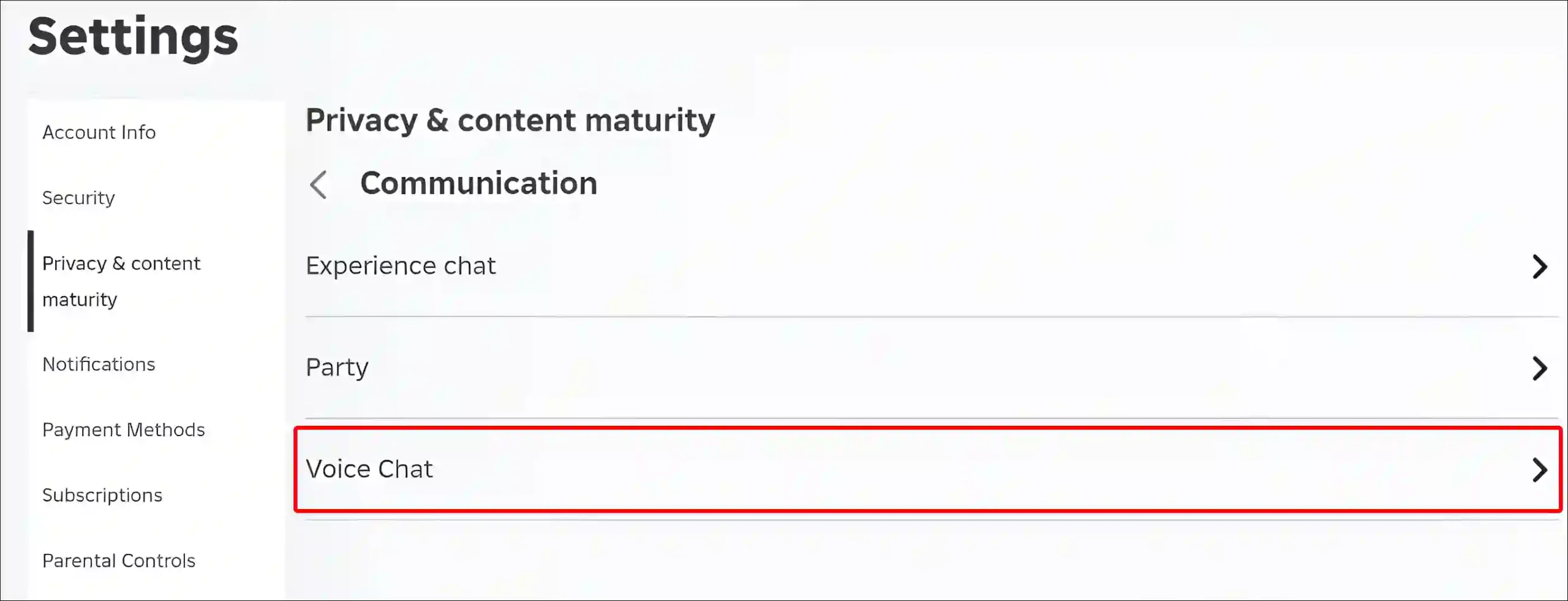
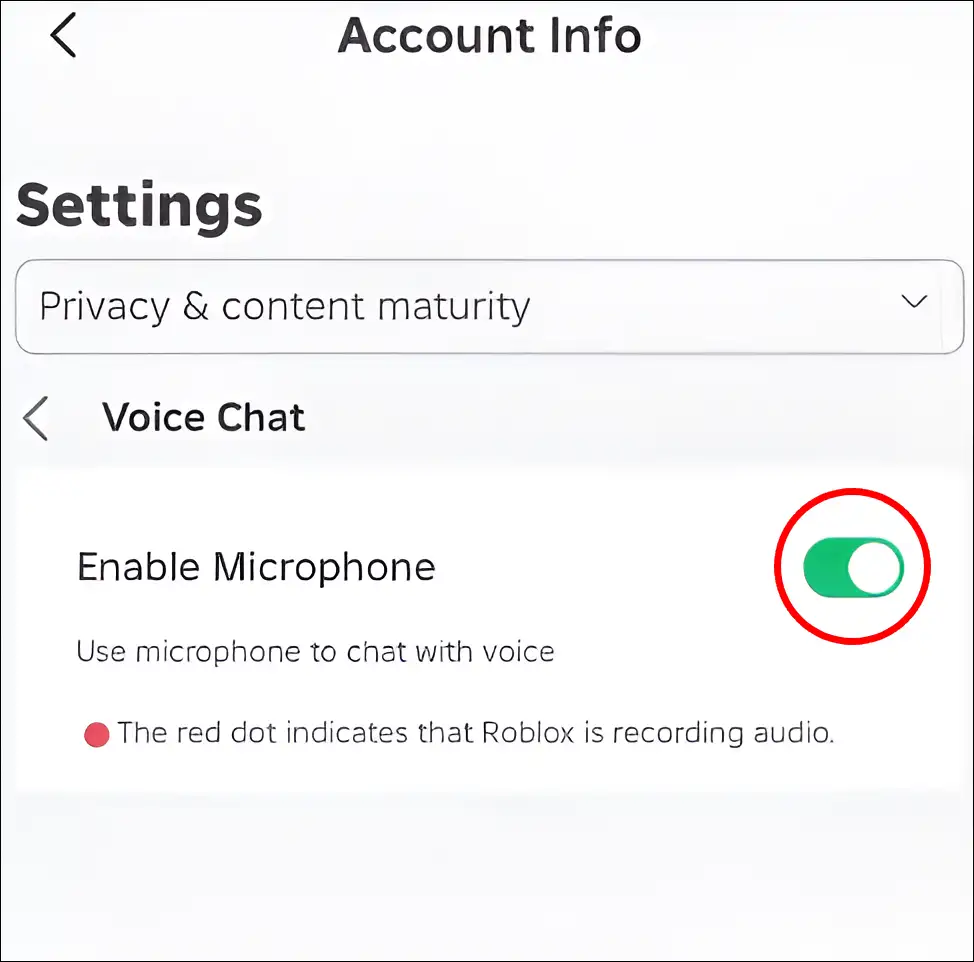
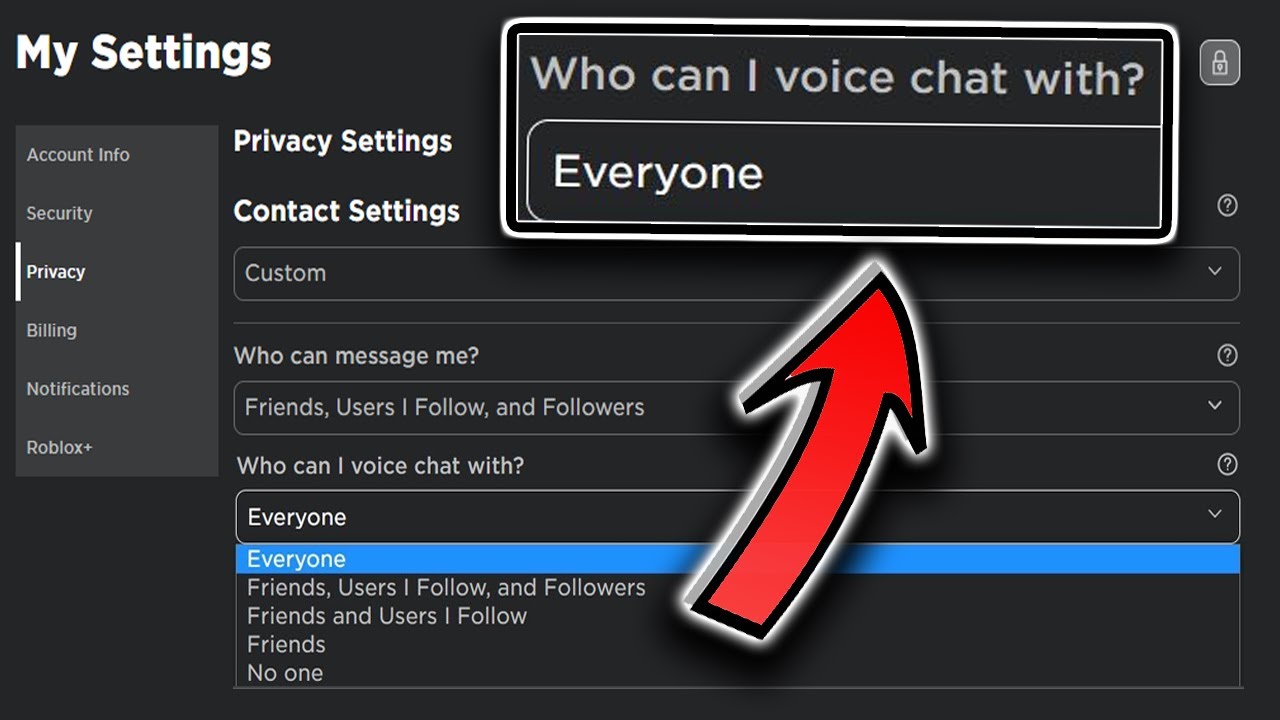
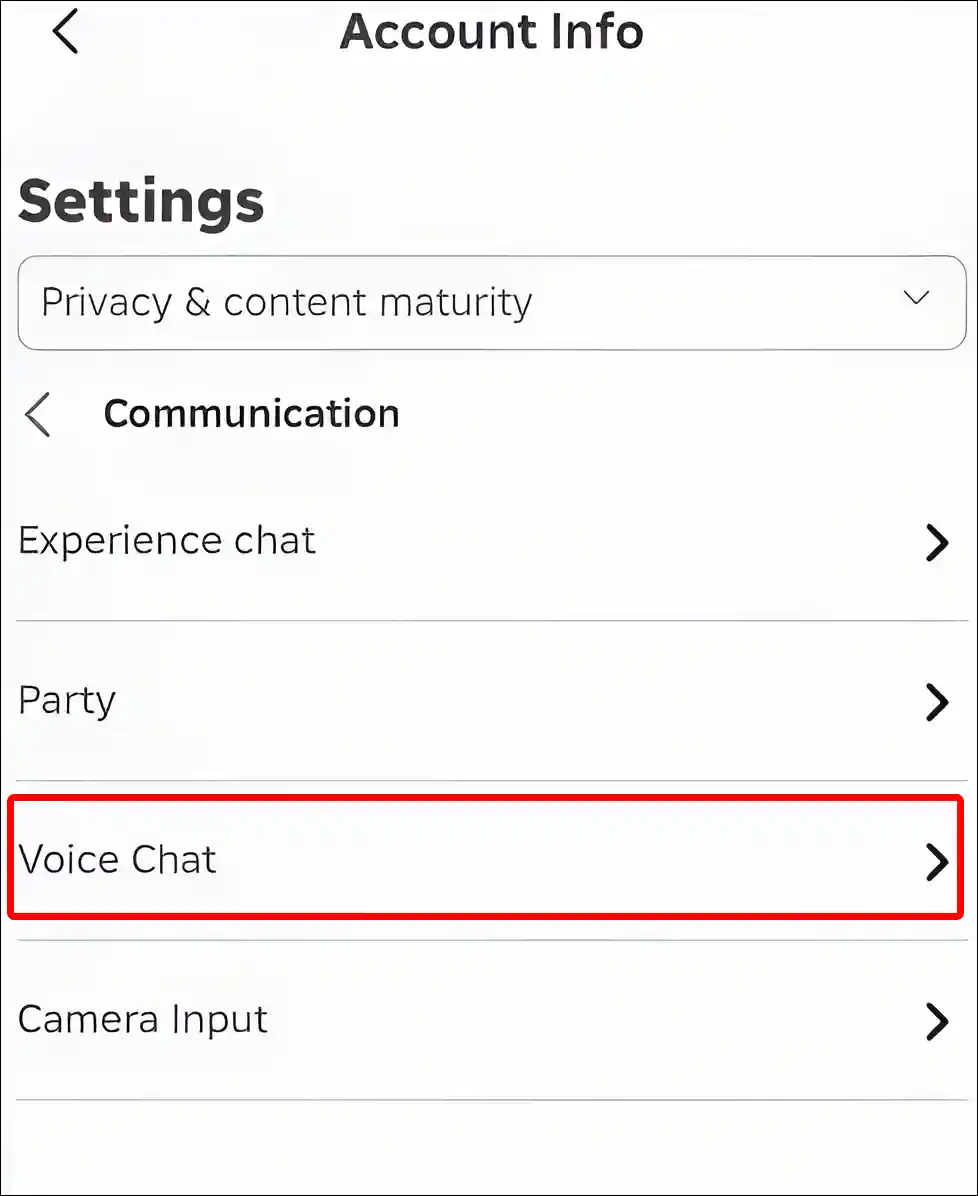
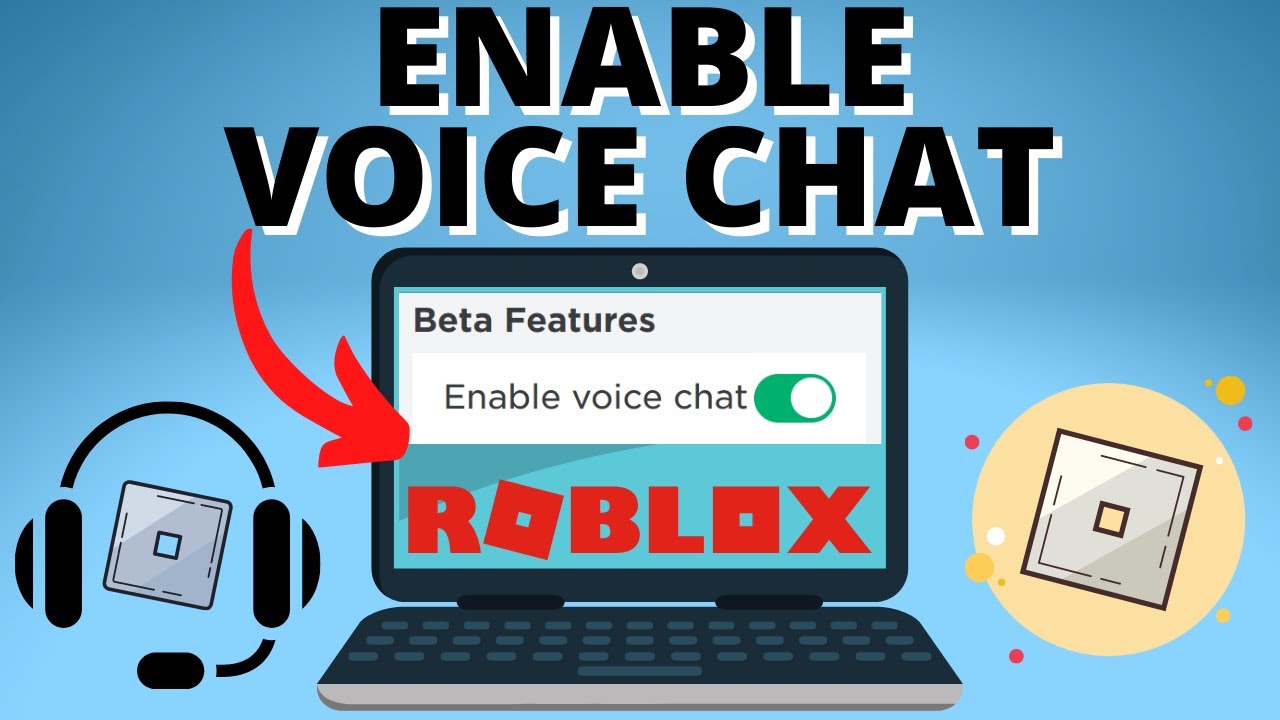
Once your age is verified, navigate to your Account Settings on the Roblox website or app. Under the Privacy tab, you should find a toggle for 'Enable Voice Chat' or 'Spatial Voice'. Simply switch this toggle to the 'On' position. Remember, this option only appears after successful age verification. After enabling it, you can join any Roblox experience that supports Spatial Voice, and your microphone should automatically activate when you speak. Always check your device's microphone settings to ensure Roblox has permission to access it.
What Are the Age Requirements for Roblox Voice Chat
Roblox takes child safety seriously, and that extends to their voice chat features. To use Spatial Voice, Roblox's integrated voice chat system, you must be 13 years of age or older. This is a non-negotiable requirement designed to protect younger users. The system relies on a secure age verification process to confirm your identity and age.
For adult gamers, this means taking a few moments to verify your age using a government-issued photo ID. This process typically involves uploading a picture of your ID and taking a live selfie through a secure third-party service integrated with Roblox. This might seem like an extra step, but it is a necessary measure to maintain a safer community environment. The verification usually completes very quickly, often within minutes, and once done, it unlocks the voice chat feature permanently for your account, as long as you meet the 13+ age criteria. This commitment to safety also aligns with general gaming trends where platforms are increasing efforts to ensure secure and appropriate interactions, especially for features involving real-time communication.
Why Isn't My Roblox Voice Chat Working After Enabling It
It can be frustrating when you have followed all the steps for how to turn on voice in Roblox, only to find it is still not working. This is a common pain point for many gamers. Troubleshooting involves checking a few key areas, starting with your device's microphone. First, ensure your microphone is properly connected and functioning outside of Roblox. Test it with another application like Discord or your operating system's sound recorder. If it works there, the issue likely lies within Roblox or your system settings.
Next, check your operating system's privacy settings. Both Windows and macOS have specific privacy controls that grant applications access to your microphone. Make sure Roblox is explicitly allowed to use your microphone. For example, in Windows, go to 'Settings' > 'Privacy' > 'Microphone' and ensure 'Allow apps to access your microphone' is on, and Roblox is listed and enabled. On mobile devices, check the app permissions for Roblox in your device settings.
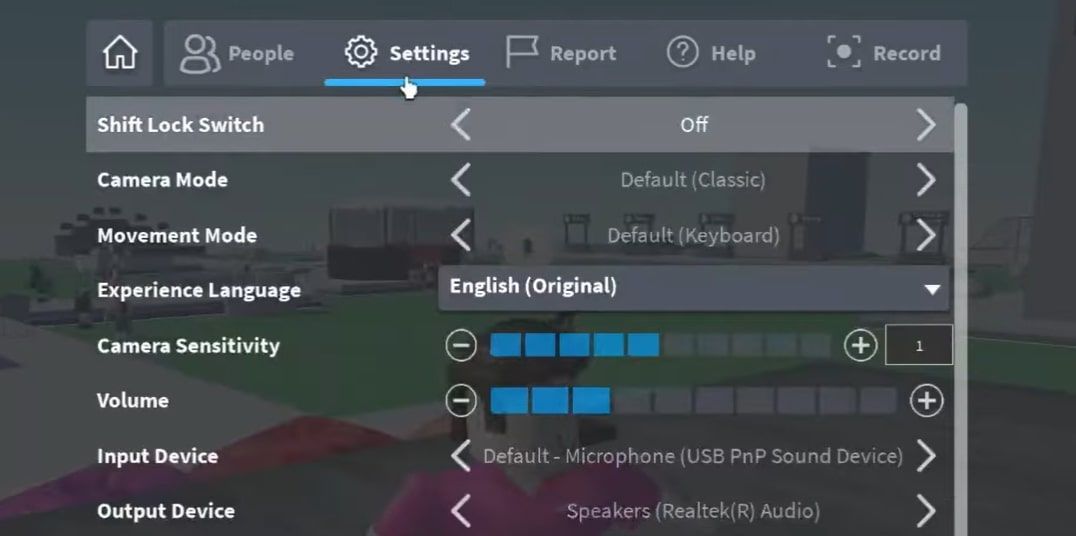
Within Roblox itself, even after enabling Spatial Voice in your account settings, you need to check in-game settings. Some experiences have their own voice chat toggles or volume controls. Look for a microphone icon or settings menu within the specific game you are playing. Finally, a simple restart of the Roblox client or your device can often resolve temporary glitches. If problems persist, consider reinstalling Roblox, as corrupted files can sometimes interfere with functionality. Staying current with drivers and software updates is also a common recommendation across all platforms for optimal performance.
Which Devices Support Roblox Spatial Voice
Roblox Spatial Voice is designed to be accessible across a wide range of devices, reflecting the platform's mobile-first dominance and cross-play capabilities that appeal to modern gamers. The feature is primarily available on PC, Mac, iOS, and Android devices. This broad compatibility ensures that whether you are gaming on your desktop at home or on your phone during a commute, you can engage with voice chat.
For PC and Mac users, as long as your operating system meets Roblox's minimum requirements and you have a functional microphone, you should be good to go. Most modern laptops come with integrated microphones, and external headsets are widely supported. Mobile gamers on iOS and Android can also utilize Spatial Voice, often using their device's built-in microphone and speakers, or a connected headset. The convenience of mobile gaming, where many US gamers spend significant time, makes this broad support essential for social features. While voice chat is widely available on these platforms, ensure your Roblox app is updated to the latest version to access all features and bug fixes. Console support for Spatial Voice is currently more limited or not yet fully implemented, but Roblox is continuously expanding its features across platforms.
How Do I Adjust My Voice Chat Settings for Privacy and Volume
Managing your voice chat settings for both privacy and volume is crucial for a comfortable and controlled gaming experience, especially for adults who prioritize balancing online interaction with personal space. After you have successfully figured out how to turn on voice in Roblox, the next step is fine-tuning it. In your Roblox account settings, under the Privacy tab, you can often find controls related to voice chat. While the main toggle is for enabling/disabling, Roblox also offers options to restrict who can communicate with you via voice.
For more granular control, once in a Spatial Voice-enabled experience, you will typically see a microphone icon near your avatar or in a game-specific UI element. Clicking this icon often allows you to mute or unmute yourself instantly. This is invaluable for those moments when life interrupts your game – a quick mute lets you handle it without disrupting your fellow players. Furthermore, you can usually adjust individual player volumes directly within the game. If someone is too loud or too quiet, clicking on their avatar or username in the player list often brings up options to adjust their volume or even mute them entirely for your session.
Beyond in-game controls, your device's system settings are also important. Adjusting your microphone input volume in your operating system's sound settings can significantly impact how loud or soft you sound to others. Regularly checking these settings ensures your voice is clear without being overpowering. These privacy and volume controls empower you to tailor your voice chat experience, making it more enjoyable and less intrusive, which is perfect for adult gamers who need that flexibility.
Are There Any Safety Concerns with Roblox Voice Chat
For many adult gamers, especially those with families, safety and moderation are significant concerns when engaging with online communities. Roblox has invested heavily in creating a safe environment, particularly with the introduction of voice chat. They employ a combination of proactive moderation and reactive reporting tools to address safety concerns effectively, which aligns with the trend of platforms enhancing user safety features.
Firstly, the strict age verification requirement (13+ with ID) for Spatial Voice is a primary safety measure, ensuring that younger, more vulnerable users are not exposed to unfiltered communication. Secondly, Roblox utilizes advanced automatic moderation systems that monitor voice conversations for inappropriate content, including hate speech, harassment, and other violations of their Community Standards. These systems are constantly evolving and improving.
However, no automated system is perfect, and human oversight is still vital. Roblox empowers users to report inappropriate behavior directly. If you encounter someone misusing voice chat – whether it is harassment, spam, or other unacceptable conduct – you can easily report them within the game. Look for the player's name in the scoreboard or player list, and there should be a 'Report' option. This report goes directly to Roblox moderators who will review the incident and take appropriate action. By providing these tools, Roblox fosters a community where users can contribute to maintaining a safe and respectful environment, which is reassuring for gamers looking to unwind without unnecessary stress.
Can I Use Roblox Voice Chat on Mobile and PC
Absolutely, the beauty of Roblox's Spatial Voice feature is its cross-platform compatibility, a highly valued aspect for modern US gamers who often play across multiple devices. Whether you are on your powerful gaming PC at home or enjoying a quick session on your smartphone during a break, you can typically use voice chat seamlessly.
For PC users, assuming you have a functioning microphone (either built-in to a headset or standalone) and your age is verified, activating voice chat is straightforward through your Roblox account settings. Similarly, mobile gamers on iOS and Android devices can enable Spatial Voice via the Roblox app settings after age verification. Your device's built-in microphone and speakers will usually work perfectly, or you can connect a headset for improved audio quality and privacy. This cross-device functionality is particularly beneficial for adult gamers who might hop between platforms depending on their schedule and location. It means you can stay connected with your friends and guild mates whether you are at your desk or on the go, making it easier to balance gaming with a busy life. Just make sure your Roblox application is updated to the latest version on all your devices to ensure optimal performance and access to all features.
What are the Best Practices for Using Voice Chat Responsibly
Using voice chat responsibly enhances the experience for everyone and reflects well on the gaming community. For adult gamers who appreciate a mature and respectful environment, adhering to best practices is key. First and foremost, always be respectful. Treat others as you would want to be treated. Avoid offensive language, harassment, or personal attacks. Remember that behind every avatar is a real person, and maintaining a positive atmosphere contributes to overall game enjoyment.
Secondly, be mindful of background noise. If you are playing in a busy household or public space, consider using a push-to-talk key or a headset with good noise cancellation. This prevents distracting sounds from your environment from impacting others' gameplay and enjoyment. Nobody wants to hear dishes clanking or a TV blaring when they are trying to focus on a game strategy. Thirdly, use the in-game mute and volume controls. If someone is being disruptive, do not engage in an argument; simply mute them. If you are too loud or too quiet, adjust your settings accordingly. Good communication means being considerate of others' auditory experience.
Finally, always report inappropriate behavior. Roblox provides robust reporting tools for a reason. If you encounter someone violating the Community Standards, use the report function. This helps moderators keep the platform safe and enjoyable for everyone. By practicing these responsible voice chat habits, you contribute to a thriving and welcoming Roblox community, making it a better place for all gamers to unwind and socialize.
How Does Roblox Spatial Voice Differ from Traditional Voice Chat
Roblox Spatial Voice brings a significant evolution to in-game communication, differentiating itself from traditional voice chat systems by incorporating spatial audio technology. While traditional voice chat often treats all participants equally, making everyone sound like they are speaking directly into your ear regardless of their in-game proximity, Spatial Voice changes the game entirely. This innovation is especially appealing to gamers seeking deeper immersion and more realistic interactions.
With Spatial Voice, the sound of other players' voices is influenced by their position relative to your avatar within the game world. If a player is far away, their voice will sound fainter; if they are close, their voice will be clear. If they are to your left, their voice will come predominantly from your left speaker or headphone. This creates a much more natural and intuitive communication experience, making you feel more connected to the virtual environment and the characters within it. It is like having a real-world conversation where you can orient yourself by sound alone.
This spatial aspect adds a layer of realism that is particularly effective in role-playing games, social hubs, and exploratory experiences within Roblox. It encourages more organic interactions, as players naturally group together to converse, mimicking real-world social dynamics. For gamers who appreciate immersive experiences and tactical communication, Spatial Voice offers a much richer and more engaging alternative to the often flat and non-directional audio of traditional voice chat systems. It truly elevates the social aspect of Roblox gameplay.
What are Some Popular Roblox Games That Use Voice Chat Effectively
As voice chat becomes a staple, certain Roblox experiences truly shine by integrating Spatial Voice effectively, enhancing gameplay and social interaction. For adult gamers looking to unwind and connect, these games offer fantastic opportunities to leverage your newly activated voice chat.
Social hangout games are often the first to embrace Spatial Voice. Experiences like 'Vibe Cafe' or 'Relaxing Cafe' provide casual environments where players can simply chill, chat, and meet new people. Voice chat makes these interactions much more dynamic and personal, allowing for real-time conversations and spontaneous meetups. These are great for unwinding after a long day.
Role-playing games also benefit immensely from Spatial Voice. Games like 'Brookhaven RP' or 'Adopt Me!' (in certain areas or servers) use voice chat to deepen the immersion, allowing players to act out their roles more genuinely. Imagine negotiating trades or strategizing with friends in character – it adds a whole new dimension to the role-play. For gamers who enjoy skill-building and collaborative play, voice chat in games like 'Tower of Hell' or 'Murder Mystery 2' can be crucial for coordinating strategies, warning teammates, or celebrating victories in real-time. This can significantly improve performance and team cohesion, which is something many adult gamers appreciate. As of this month, the trend is towards more immersive social experiences, and voice chat is at the forefront of this evolution in Roblox.
By following these steps, you should now be well-equipped to use voice chat in Roblox, enhancing your gaming sessions and connecting with others in a more direct and engaging way. The ability to chat in real-time adds incredible depth to the vibrant worlds Roblox offers, transforming how you play and socialize. Remember, responsible usage and respecting community guidelines are key to a positive experience for everyone.
FAQ Section
Is Roblox voice chat free to use?
Yes, Roblox Spatial Voice chat is completely free to use once you have met the age verification requirements. There are no additional fees or subscriptions required to access this feature, making it an excellent value for gamers looking to enhance their social experience without extra costs.
What if my ID verification fails for Roblox voice chat?
If your ID verification fails, carefully review the reasons provided by Roblox. Common issues include blurry images, mismatched names, or expired IDs. Double-check your information, ensure clear lighting for photos, and try again. If problems persist, contact Roblox Support for further assistance.
Can I mute other players in Roblox voice chat?
Yes, you can easily mute individual players in Roblox voice chat within a game. Typically, clicking on a player's avatar or name in the player list will bring up options to adjust their volume or mute them completely for your session, giving you control over your audio environment.
Is voice chat available in all Roblox games?
No, voice chat (Spatial Voice) is not available in all Roblox games. It needs to be explicitly enabled by the experience creator. Look for games marked with the 'Spatial Voice Enabled' tag or check within the game's description or settings to confirm if voice chat is supported.
How do I report misuse of voice chat in Roblox?
To report misuse of voice chat, use the in-game reporting system. Find the player's name in the scoreboard or player list, select them, and choose the 'Report' option. Provide specific details about the incident, and Roblox moderators will review and take appropriate action to maintain a safe community.
What is your biggest gaming challenge? Comment below!
Unlock Roblox voice chat with age verification enhance social gameplay troubleshoot common issues adjust privacy settings explore spatial voice features find voice-enabled games
35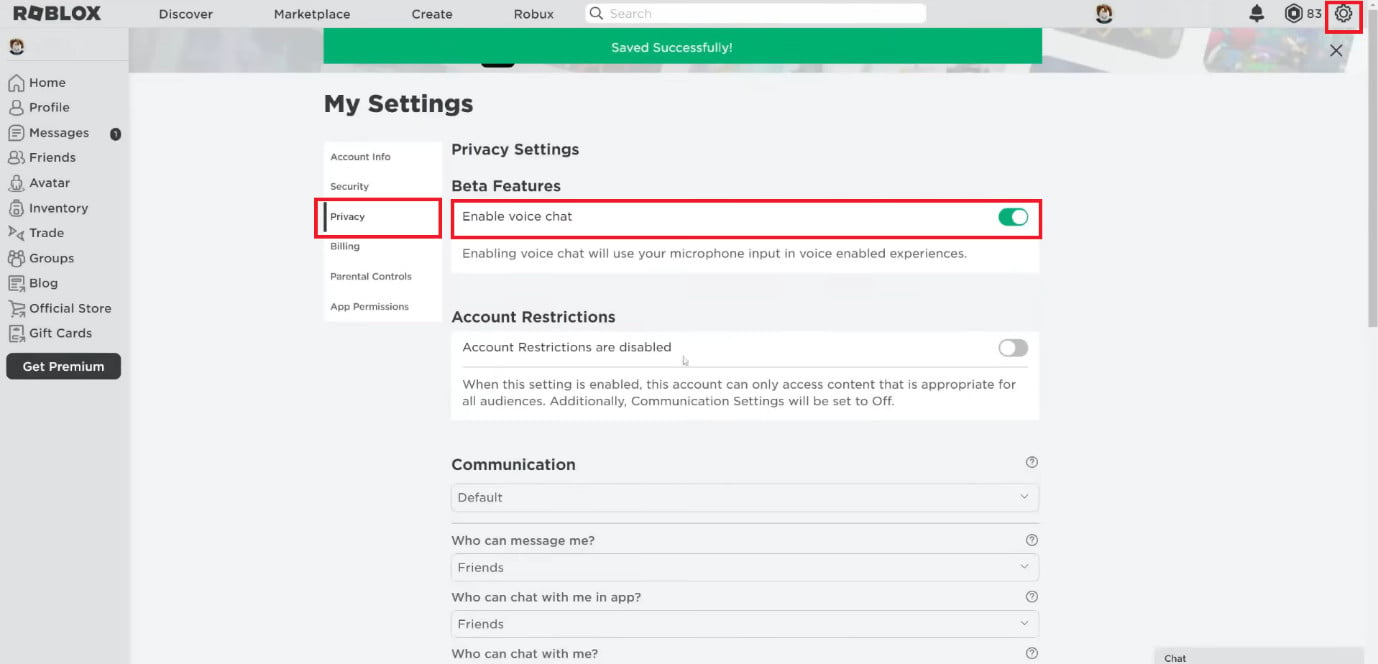

How To Enable Voice Chat In Roblox TechCult Turn The Toggle On For Enable Voice Chat . How To Get Voice Chat On Roblox Cara Mendapatkan Voice Chat Di Roblox Settings 1024x573 . How To Get Voice Chat On Roblox 2026 YouTube . Silence The Chat Disabling Roblox Voice Roblox Voice Chat Settings Scaled.webp. How To Turn On The Microphone On Roblox Voice Chat Enable Roblox App
:max_bytes(150000):strip_icc()/Roblox-microphone-toggle-dc5112a0520b4494a4a3acf74872c09b.jpg)

How To Turn On Voice Chat Roblox H Ng D N C I T V S D Ng Chi Ti T . How To Enable Voice Chat In Roblox RoCodes Gg RoCodes 1656 How To Enable Voice Chat In Roblox . How Do You Turn Your Mic On In Roblox Roblox Microphone Toggle . How To TURN ON VOICE CHAT In ROBLOX Tutorial ROBLOX Voice Chat . How To Enable Voice Chat On Roblox Instantly How To Turn On Voice



How To Message On Roblox 2026 A Quick Guide . How To Disable Voice Chat On Roblox TURN OFF Voice Chat Guide YouTube . Roblox On Xbox Can You Chat With Your Voice PC Mobile How To Get Voice Chat On Roblox . How To Get Roblox Voice Chat On Pc Or Mac Allow Voice Chat Feature In . Silence The Chat Disabling Roblox Voice 11 Turn The Volume Up By Clicking The Plus Icon Next To It


Roblox On Xbox Can You Chat With Your Voice . Roblox Voice Chat Your 2025 Guide Roblox App Voice Chat. How Do I Turn On Voice Activation Enable Voice Chat Roblox Steps . Roblox Voice Chat Your 2025 Guide . Can 17 Year Olds Use Voice Chat On Roblox Today Cara Mendapatkan Voice Chat



Turn On Voice Chat In Roblox How To USE Voice Chat In Roblox IPad . How To Get Voice Chat On Roblox 2026 Enable VC Without ID Izoate How To Enable Voice Chat In Roblox 2026. Why Won T My Roblox Voice Chat Work Simple Fixes . How To Turn On Voice Chat In Roblox How To Enable Voice Chat In Roblox . How To Turn Off Voice Chat On Roblox Easy Guide Roblox Voice Chat


Silence The Chat Disabling Roblox Voice . Roblox On Xbox Can You Chat With Your Voice . How To Get Voice Chat On Roblox TechStory 372b . Why Won T My Roblox Voice Chat Work Simple Fixes . Want To Disable Roblox Captures Here S How


Roblox How To Turn On Roblox Voice Chat Or VC Android IOs YouTube . Can 17 Year Olds Use Voice Chat On Roblox Today How To Get Roblox Voice Chat . Roblox On Xbox Can You Chat With Your Voice . How To Enable And Turn On Voice Chat Roblox 2024 YouTube . How To Turn On Voice Chat Roblox H Ng D N C I T V S D Ng Chi Ti T